Verify that the device is hybrid Azure AD joined, run dsregcmd /status from the command line.
You can confirm that the device is properly hybrid-joined if both AzureAdJoined and DomainJoined are set to YES.
Verify that the device is hybrid Azure AD joined, run dsregcmd /status from the command line.
You can confirm that the device is properly hybrid-joined if both AzureAdJoined and DomainJoined are set to YES.
Enroll a Windows 10 device automatically using Group Policy
Enroll a Windows 10 device automatically using Group Policy
Article
01/05/2023
12 minutes to read
4 contributors
Applies to:
Windows 10
Starting in Windows 10, version 1709, you can use a Group Policy to trigger auto-enrollment to Mobile Device Management (MDM) for Active Directory (AD) domain-joined devices.
The enrollment into Intune is triggered by a group policy created on your local AD and happens without any user interaction. This cause-and-effect mechanism means you can automatically mass-enroll a large number of domain-joined corporate devices into Microsoft Intune. The enrollment process starts in the background once you sign in to the device with your Azure AD account.
Requirements:
Active Directory-joined PC running Windows 10, version 1709 or later
The enterprise has configured a mobile device management (MDM) service
The on-premises Active Directory must be integrated with Azure AD (via Azure AD Connect)
The device shouldn't already be enrolled in Intune using the classic agents (devices managed using agents will fail enrollment with error 0x80180026)
The minimum Windows Server version requirement is based on the Hybrid Azure AD join requirement. For more information, see How to plan your hybrid Azure Active Directory join implementation.
Tip
For more information, see the following topics:
How to configure automatic registration of Windows domain-joined devices with Azure Active Directory
How to plan your hybrid Azure Active Directory join implementation
Azure Active Directory integration with MDM
The auto-enrollment relies on the presence of an MDM service and the Azure Active Directory registration for the PC. Starting in Windows 10, version 1607, once the enterprise has registered its AD with Azure AD, a Windows PC that is domain joined is automatically Azure AD–registered.
Note
In Windows 10, version 1709, the enrollment protocol was updated to check whether the device is domain-joined. For details, see [MS-MDE2]: Mobile Device Enrollment Protocol Version 2. For examples, see section 4.3.1 RequestSecurityToken of the MS-MDE2 protocol documentation.
When the auto-enrollment Group Policy is enabled, a task is created in the background that initiates the MDM enrollment. The task will use the existing MDM service configuration from the Azure Active Directory information of the user. If multi-factor authentication is required, the user will get a prompt to complete the authentication. Once the enrollment is configured, the user can check the status in the Settings page.
In Windows 10, version 1709 or later, when the same policy is configured in Group Policy and MDM, Group Policy policy takes precedence over MDM. Since Windows 10, version 1803, a new setting allows you to change precedence to MDM. For more information, see Windows 10 Group Policy vs. Intune MDM Policy who wins?.
For this policy to work, you must verify that the MDM service provider allows Group Policy initiated MDM enrollment for domain-joined devices.
Verify auto-enrollment requirements and settings
To ensure that the auto-enrollment feature is working as expected, you must verify that various requirements and settings are configured correctly. The following steps demonstrate required settings using the Intune service:
Verify that the user who is going to enroll the device has a valid Intune license.
Intune license verification.
Verify that auto-enrollment is activated for those users who are going to enroll the devices into Mobile Device Management (MDM) with Intune. For more information, see Azure AD and Microsoft Intune: Automatic MDM enrollment in the new Portal.
Auto-enrollment activation verification.
Important
For bring-your-own devices (BYOD devices), the Mobile Application Management (MAM) user scope takes precedence if both MAM user scope and MDM user scope (automatic MDM enrollment) are enabled for all users (or the same groups of users). The device will use Windows Information Protection (WIP) Policies (if you configured them) rather than being MDM enrolled.
For corporate-owned devices, the MDM user scope takes precedence if both scopes are enabled. The devices get MDM enrolled.
Verify that the device OS version is Windows 10, version 1709 or later.
Auto-enrollment into Intune via Group Policy is valid only for devices that are hybrid Azure AD joined. This condition means that the device must be joined into both local Active Directory and Azure Active Directory. To verify that the device is hybrid Azure AD joined, run dsregcmd /status from the command line.
You can confirm that the device is properly hybrid-joined if both AzureAdJoined and DomainJoined are set to YES.
Auto-enrollment device status result.
Additionally, verify that the SSO State section displays AzureAdPrt as YES.
Auto-enrollment Azure AD prt verification.
This information can also be found on the Azure AD device list.
Azure AD device list.
Verify that the MDM discovery URL during auto-enrollment is https://enrollment.manage.microsoft.com/enrollmentserver/discovery.svc
MDM discovery URL.
Some tenants might have both Microsoft Intune and Microsoft Intune Enrollment under Mobility. Make sure that your auto-enrollment settings are configured under Microsoft Intune instead of Microsoft Intune Enrollment.
Mobility setting MDM intune.
Verify that the Enable Automatic MDM enrollment using default Azure AD credentials group policy (Local Group Policy Editor > Computer Configuration > Policies > Administrative Templates > Windows Components > MDM) is properly deployed to all devices that should be enrolled into Intune.
You may contact your domain administrators to verify if the group policy has been deployed successfully.
Verify that the device isn't enrolled with the old Intune client used on the Intune Silverlight Portal (the Intune portal used before the Azure portal).
Verify that Microsoft Intune should allow enrollment of Windows devices.
Enrollment of Windows devices.
Configure the auto-enrollment Group Policy for a single PC
This procedure is only for illustration purposes to show how the new auto-enrollment policy works. It's not recommended for the production environment in the enterprise. For bulk deployment, you should use the Group Policy Management Console process.
Requirements:
AD-joined PC running Windows 10, version 1709 or later
Enterprise has MDM service already configured
Enterprise AD must be registered with Azure AD
Run GPEdit.msc. Choose Start, then in the text box type gpedit.
GPEdit desktop app search result.
Under Best match, select Edit group policy to launch it.
In Local Computer Policy, select Administrative Templates > Windows Components > MDM.
MDM policies.
Double-click Enable automatic MDM enrollment using default Azure AD credentials (previously called Auto MDM Enrollment with AAD Token in Windows 10, version 1709). For ADMX files in Windows 10, version 1903 and later, select User Credential as the Selected Credential Type to use.
MDM autoenrollment policy.
Select Enable, select User Credential from the dropdown Select Credential Type to Use, then select OK.
Note
In Windows 10, version 1903, the MDM.admx file was updated to include an option to select which credential is used to enroll the device. Device Credential is a new option that will only have an effect on clients that have installed Windows 10, version 1903 or later. The default behavior for older releases is to revert to User Credential. Device Credential is only supported for Microsoft Intune enrollment in scenarios with Co-management or Azure Virtual Desktop multi-session host pools because the Intune subscription is user centric. User credentials are supported for Azure Virtual Desktop personal host pools.
When a group policy refresh occurs on the client, a task is created and scheduled to run every 5 minutes for the duration of one day. The task is called "Schedule created by enrollment client for automatically enrolling in MDM from Azure Active Directory."
To see the scheduled task, launch the Task Scheduler app.
If two-factor authentication is required, you'll be prompted to complete the process. Here's an example screenshot.
Two-factor authentication notification.
Tip
You can avoid this behavior by using Conditional Access Policies in Azure AD. Learn more by reading What is Conditional Access?.
To verify successful enrollment to MDM, go to Start > Settings > Accounts > Access work or school, then select your domain account.
Select Info to see the MDM enrollment information.
Work School Settings.
If you don't see the Info button or the enrollment information, enrollment might have failed. Check the status in Task Scheduler app.
Task Scheduler app
Select Start, then in the text box type task scheduler.
Task Scheduler search result.
Under Best match, select Task Scheduler to launch it.
In Task Scheduler Library, open Microsoft > Windows , then select EnterpriseMgmt.
Auto-enrollment scheduled task.
To see the result of the task, move the scroll bar to the right to see the Last Run Result. The message 0x80180026 is a failure message (MENROLL_E_DEVICE_MANAGEMENT_BLOCKED). You can see the logs in the History tab.
If the device enrollment is blocked, your IT admin might have enabled the Disable MDM Enrollment policy.
Note
The GPEdit console doesn't reflect the status of policies set by your IT admin on your device. It's only used by the user to set policies.
Configure the auto-enrollment for a group of devices
Requirements:
AD-joined PC running Windows 10, version 1709 or later
Enterprise has MDM service already configured (with Intune or a third-party service provider)
Enterprise AD must be integrated with Azure AD.
Ensure that PCs belong to same computer group.
Important
If you don't see the policy, it may be because you don't have the ADMX for Windows 10, version 1803, version 1809, or version 1903 installed. To fix the issue, use the following procedures. Note that the latest MDM.admx is backwards compatible.
Download:
1803 --> Administrative Templates (.admx) for Windows 10 April 2018 Update (1803)
1809 --> Administrative Templates (.admx) for Windows 10 October 2018 Update (1809)
1903 --> Administrative Templates (.admx) for Windows 10 May 2019 Update (1903)
1909 --> Administrative Templates (.admx) for Windows 10 November 2019 Update (1909)
2004 --> Administrative Templates (.admx) for Windows 10 May 2020 Update (2004)
20H2 --> Administrative Templates (.admx) for Windows 10 October 2020 Update (20H2)
21H1 --> Administrative Templates (.admx) for Windows 10 May 2021 Update (21H1)
21H2 --> Administrative Templates (.admx) for Windows 10 November 2021 Update (21H2)-v2.0
Install the package on the Domain Controller.
Navigate, depending on the version to the folder:
1803 --> C:\Program Files (x86)\Microsoft Group Policy\Windows 10 April 2018 Update (1803) v2
1809 --> C:\Program Files (x86)\Microsoft Group Policy\Windows 10 October 2018 Update (1809) v2
1903 --> C:\Program Files (x86)\Microsoft Group Policy\Windows 10 May 2019 Update (1903) v3
1909 --> C:\Program Files (x86)\Microsoft Group Policy\Windows 10 November 2019 Update (1909)
2004 --> C:\Program Files (x86)\Microsoft Group Policy\Windows 10 May 2020 Update (2004)
20H2 --> C:\Program Files (x86)\Microsoft Group Policy\Windows 10 October 2020 Update (20H2)
21H1 --> C:\Program Files (x86)\Microsoft Group Policy\Windows 10 May 2021 Update (21H1)
21H2 --> C:\Program Files (x86)\Microsoft Group Policy\Windows 10 November 2021 Update V2 (21H2)
Rename the extracted Policy Definitions folder to PolicyDefinitions.
Copy the PolicyDefinitions folder to \\contoso.com\SYSVOL\contoso.com\policies\PolicyDefinitions.
If this folder doesn't exist, then you'll be switching to a central policy store for your entire domain.
Wait for the SYSVOL DFSR replication to be completed for the policy to be available.
This procedure will work for any future version as well.
Create a Group Policy Object (GPO) and enable the Group Policy Computer Configuration > Policies > Administrative Templates > Windows Components > MDM > Enable automatic MDM enrollment using default Azure AD credentials.
Create a Security Group for the PCs.
Link the GPO.
Filter using Security Groups.
Troubleshoot auto-enrollment of devices
Investigate the log file if you have issues even after performing all the mandatory verification steps. The first log file to investigate is the event log on the target Windows 10 device.
To collect Event Viewer logs:
Open Event Viewer.
Navigate to Applications and Services Logs > Microsoft > Windows > DeviceManagement-Enterprise-Diagnostic-Provider > Admin.
Tip
For guidance on how to collect event logs for Intune, see Collect MDM Event Viewer Log YouTube video.
Search for event ID 75, which represents a successful auto-enrollment. Here's an example screenshot that shows the auto-enrollment completed successfully:
Event ID 75.
If you can't find event ID 75 in the logs, it indicates that the auto-enrollment failed. This failure can happen because of the following reasons:
The enrollment failed with error. In this case, search for event ID 76, which represents failed auto-enrollment. Here's an example screenshot that shows that the auto-enrollment failed:
Event ID 76.
To troubleshoot, check the error code that appears in the event. For more information, see Troubleshooting Windows device enrollment problems in Microsoft Intune.
The auto-enrollment didn't trigger at all. In this case, you'll not find either event ID 75 or event ID 76. To know the reason, you must understand the internal mechanisms happening on the device as described in the following section.
The auto-enrollment process is triggered by a task (Microsoft > Windows > EnterpriseMgmt) within the task-scheduler. This task appears if the Enable automatic MDM enrollment using default Azure AD credentials group policy (Computer Configuration > Policies > Administrative Templates > Windows Components > MDM) is successfully deployed to the target machine as shown in the following screenshot:
Task scheduler.
Note
This task isn't visible to standard users, run Scheduled Tasks with administrative credentials to find the task.
This task runs every 5 minutes for the duration of one day. To confirm if the task succeeded, check the task scheduler event logs: Applications and Services Logs > Microsoft > Windows > Task Scheduler > Operational. Look for an entry where the task scheduler created by enrollment client for automatically enrolling in MDM from Azure Active Directory is triggered by event ID 107.
Event ID 107.
When the task is completed, a new event ID 102 is logged.
Event ID 102.
The task scheduler log displays event ID 102 (task completed) regardless of the auto-enrollment success or failure. This status-display means that the task scheduler log is only useful to confirm if the auto-enrollment task is triggered or not. It doesn't indicate the success or failure of auto-enrollment.
If you can't see from the log that task Schedule created by enrollment client for automatically enrolling in MDM from Azure AD is initiated, there's possibly an issue with the group policy. Immediately run the command gpupdate /force in a command prompt to get the group policy object applied. If this step still doesn't help, further troubleshooting on Active Directory is required. One frequently seen error is related to some outdated enrollment entries in the registry on the target client device (HKLM > Software > Microsoft > Enrollments). If a device has been enrolled (can be any MDM solution and not only Intune), some enrollment information added into the registry is seen:
Outdated enrollment entries.
By default, these entries are removed when the device is un-enrolled, but occasionally the registry key remains even after un-enrollment. In this case, gpupdate /force fails to initiate the auto-enrollment task and error code 2149056522 is displayed in the Applications and Services Logs > Microsoft > Windows > Task Scheduler > Operational event log file under event ID 7016.
A resolution to this issue is to remove the registry key manually. If you don't know which registry key to remove, go for the key that displays most entries as the screenshot above. All other keys will display fewer entries as shown in the following screenshot:
Manually deleted entries.
Related topics
Group Policy Management Console
Create and Edit a Group Policy Object
Link a Group Policy Object
Filter Using Security Groups
Enforce a Group Policy Object Link
Group Policy Central Store
Getting started with Cloud Native Windows Endpoints
A Framework for Windows endpoint management transformation
Success with remote Windows Autopilot and Hybrid Azure Active Director join
Useful Links
Windows 10 Administrative Templates for Windows 10 November 2021 Update (21H2)-v2.0
Windows 10 Administrative Templates for Windows 10 May 2021 Update 21H1
Windows 10 Administrative Templates for Windows 10 November 2019 Update 1909
Windows 10 Administrative Templates for Windows 10 May 2019 Update 1903
Windows 10 Administrative Templates for Windows 10 October 2018 Update 1809
Recommended content
Enrollment for hybrid Azure AD-joined devices - Windows Autopilot
Use Windows Autopilot to enroll hybrid Azure AD-joined devices in Microsoft Intune.
Troubleshooting Windows device enrollment problems in Intune - Intune
Suggestions for troubleshooting some of the most common error messages when you enroll Windows devices in Microsoft Intune.
Troubleshoot Windows 10 Group Policy auto-enrollment in Microsoft Intune - Intune
Learn how to troubleshoot auto-enrollment.
Set up enrollment for Windows devices by using Microsoft Intune
Set up enrollment for Windows devices.
Autopilot to enroll devices in Intune Microsoft
Admin i request you to go through these article
IT Consultant
Setting up and managing Microsoft 365 Business Premium Azure Active Directory Devices
https://endpoint.microsoft.com/
https://docs.microsoft.com/en-us/mem/intune/enrollment/windows-enroll
This article helps IT administrators simplify Windows enrollment for their users. Once you've set up Intune, users enroll Windows devices by signing in with their work or school account.
As an Intune admin, you can simplify enrollment in the following ways:
Two factors determine how you can simplify Windows device enrollment:
Organizations that can use automatic enrollment can also configure bulk enroll devices by using the Windows Configuration Designer app.
Before an administrator can enroll devices to Intune for management, licenses should have already been assigned to the administrator's account. Read about assigning licenses for device enrollment
Intune supports multiple users on devices that both:
When standard users sign in with their Azure AD credentials, they receive apps and policies assigned to their user name. Only the device's Primary user can use the Company Portal for self-service scenarios like installing apps and performing device actions (Remove, Reset). For shared Windows 10 devices that do not have a primary user assigned, the Company Portal can still be used to install Available apps.
Automatic enrollment lets users enroll their Windows 10 devices in Intune. To enroll, users add their work account to their personally owned devices or join corporate-owned devices to Azure Active Directory. In the background, the device registers and joins Azure Active Directory. Once registered, the device is managed with Intune.
Prerequisites
Sign in to the Azure portal, and select Azure Active Directory.

Select Mobility (MDM and MAM).

Select Microsoft Intune.

Configure MDM User scope. Specify which users' devices should be managed by Microsoft Intune. These Windows 10 devices can automatically enroll for management with Microsoft Intune.
None - MDM automatic enrollment disabled
Some - Select the Groups that can automatically enroll their Windows 10 devices
All - All users can automatically enroll their Windows 10 devices
Important
For Windows BYOD devices, the MAM user scope takes precedence if both the MAM user scope and the MDM user scope (automatic MDM enrollment) are enabled for all users (or the same groups of users). The device will not be MDM enrolled, and Windows Information Protection (WIP) Policies will be applied if you have configured them.
If your intent is to enable automatic enrollment for Windows BYOD devices to an MDM: configure the MDM user scope to All (or Some, and specify a group) and configure the MAM user scope to None (or Some, and specify a group – ensuring that users are not members of a group targeted by both MDM and MAM user scopes).
For corporate devices, the MDM user scope takes precedence if both MDM and MAM user scopes are enabled. The device will get automatically enrolled in the configured MDM.
Note
MDM user scope must be set to an Azure AD group that contains user objects.
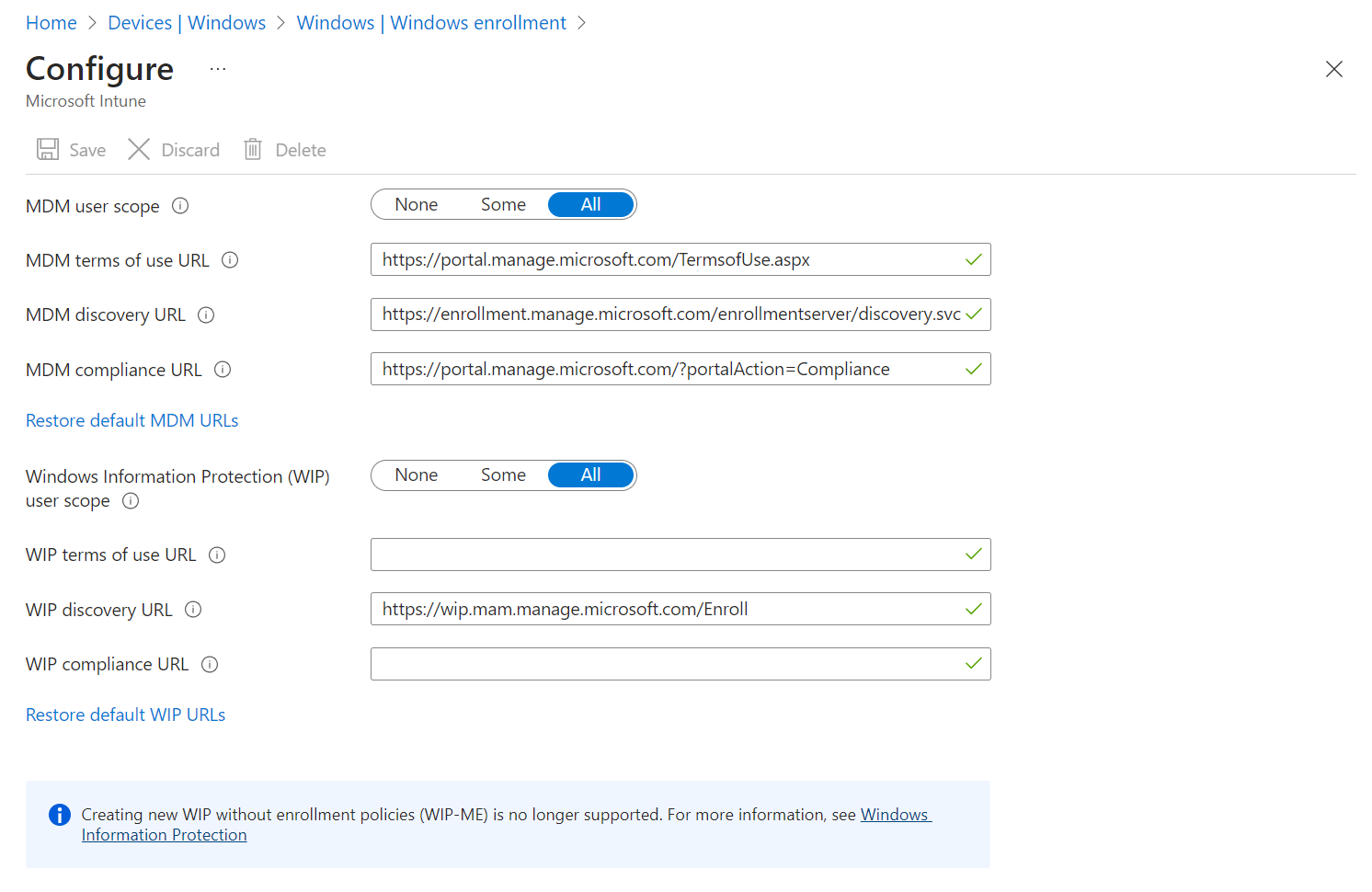
Use the default values for the following URLs:
Select Save.
By default, two-factor authentication is not enabled for the service. However, two-factor authentication is recommended when registering a device. To enable two-factor authentication, configure a two-factor authentication provider in Azure AD and configure your user accounts for multi-factor authentication. See Getting started with the Azure Multi-Factor Authentication Server.
To simplify enrollment, create a domain name server (DNS) alias (CNAME record type) that redirects enrollment requests to Intune servers. Otherwise, users trying to connect to Intune must enter the Intune server name during enrollment.
Step 1: Create CNAME (optional)
Create CNAME DNS resource records for your company's domain. For example, if your company's website is contoso.com, you would create a CNAME in DNS that redirects EnterpriseEnrollment.contoso.com to enterpriseenrollment-s.manage.microsoft.com.
Although creating CNAME DNS entries is optional, CNAME records make enrollment easier for users. If no enrollment CNAME record is found, users are prompted to manually enter the MDM server name, enrollment.manage.microsoft.com.
If the company uses more than one UPN suffix, you need to create one CNAME for each domain name and point each one to EnterpriseEnrollment-s.manage.microsoft.com. For example, users at Contoso use the following formats as their email/UPN:
The Contoso DNS admin should create the following CNAMEs:
EnterpriseEnrollment-s.manage.microsoft.com – Supports a redirect to the Intune service with domain recognition from the email's domain name
Changes to DNS records might take up to 72 hours to propagate. You can't verify the DNS change in Intune until the DNS record propagates.
EnterpriseEnrollment-s.manage.microsoft.com is the preferred FQDN for enrollment. There are two other endpoints that have been used by customers in the past and still work, but they are no longer supported. EnterpriseEnrollment.manage.microsoft.com (without the -s) and manage.microsoft.com both work as the target for the auto-discovery server, but the user will have to touch OK on a confirmation message. If you point to EnterpriseEnrollment-s.manage.microsoft.com, the user won't have to do the additional confirmation step, so this is the recommended configuration
Using a method other than the CNAME configuration is not supported. For example, using a proxy server to redirect enterpriseenrollment.contoso.com/EnrollmentServer/Discovery.svc to either enterpriseenrollment-s.manage.microsoft.com/EnrollmentServer/Discovery.svc or manage.microsoft.com/EnrollmentServer/Discovery.svc is not supported.
Step 2: Verify CNAME (optional)
Tell your users how to enroll their Windows devices and what to expect after they're brought into management.
Note
End users must access the Company Portal website through Microsoft Edge to view Windows apps that you've assigned for specific versions of Windows. Other browsers, including Google Chrome, Mozilla Firefox, and Internet Explorer do not support this type of filtering.
For end-user enrollment instructions, see Enroll Windows 10 device and Enroll Windows 8.1 or Windows RT 8.1 device. You can also tell users to review What can my IT admin see on my device.
Important
If you do not have Auto-MDM enrollment enabled, but you have Windows 10 devices that have been joined to Azure AD, two records will be visible in the Intune console after enrollment. You can stop this by making sure that users with Azure AD joined devices go to Accounts > Access work or school and Connect using the same account.
For more information about end-user tasks, see Resources about the end-user experience with Microsoft Intune.
Azure Active Directory has a different CNAME that it uses for device registration for iOS/iPadOS, Android, and Windows devices. Intune conditional access requires devices to be registered, also called "workplace joined". If you plan to use conditional access, you should also configure the EnterpriseRegistration CNAME for each company name you have.
For more information about device registration, see Manage device identities using the Azure portal
This section applies to US government cloud customers.
Although creating CNAME DNS entries is optional, CNAME records make enrollment easier for users. If no enrollment CNAME record is found, users are prompted to manually enter the MDM server name, enrollment.manage.microsoft.us.
https://docs.microsoft.com/en-us/mem/intune/enrollment/tutorial-use-autopilot-enroll-devices
Windows Autopilot simplifies enrolling devices. With Microsoft Intune and Autopilot, you can give new devices to your end users without the need to build, maintain, and apply custom operating system images.
In this tutorial, you'll learn how to:
If you don't have an Intune subscription, sign up for a free trial account.
For an overview of Autopilot benefits, scenarios, and prerequisites, see Overview of Windows Autopilot.
The first step in setting up Windows Autopilot is to add the Windows devices to Intune. All you have to do is create a CSV file and import it into Intune.
In any text editor, create a list of comma-separated values (CSV) that identify the Windows devices. Use the following format:
serial-number, windows-product-id, hardware-hash, optional-Group-Tag
The first three items are required, but the Group Tag (previously known "order ID") is optional.
Save the CSV file.
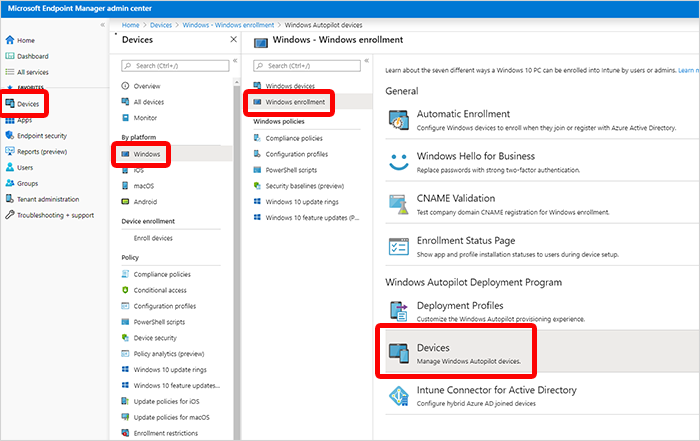
In the Microsoft Endpoint Manager admin center, choose Devices > Windows > Devices (under Windows Autopilot Deployment Program > Import.
Under Add Windows Autopilot devices, browse to the CSV file you saved.
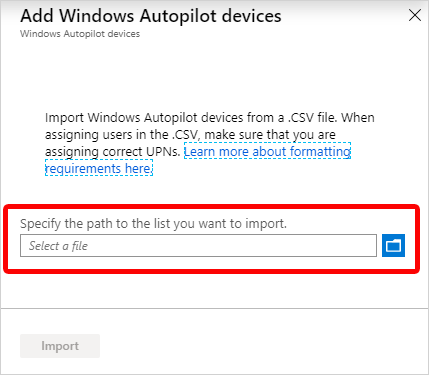
Choose Import to start importing the device information. Importing can take several minutes.
After import is complete, choose Devices > Windows > Windows enrollment > Devices (under Windows Autopilot Deployment Program > Sync. A message displays that the synchronization is in progress. The process might take a few minutes to complete, depending on how many devices you're synchronizing.
Refresh the view to see the new devices.
Next, you'll create a device group and put the Autopilot devices you just loaded into it.
After creating a device group, you must create a deployment profile so that you can configure the Autopilot devices.
You can now distribute the Windows devices to your users. When they sign in for the first time, the Autopilot system will automatically enroll and configure the devices.
If you don't want to use Autopilot devices anymore, you can delete them.
If the devices are enrolled in Intune, you must first delete them from the Azure Active Directory portal.
In the Microsoft Endpoint Manager admin center, choose Devices > Windows > Windows enrollment > Devices (under Windows Autopilot Deployment Program).
Choose the devices you want to delete, and then choose Delete.
Confirm the deletion by choosing Yes. It can take a few minutes to delete.
You can find more information about other options available for Windows Autopilot.
https://docs.microsoft.com/en-us/mem/intune/enrollment/android-enroll
As an Intune administrator, you can enroll Android devices in the following ways:
To prepare to manage mobile devices, you must set the mobile device management (MDM) authority to Microsoft Intune. See Set the MDM authority for instructions. You set this item only once, when you are first setting up Intune for mobile device management.
For Android Enterprise, refer to the following support article from Google to ensure that Android Enterprise is available in your country or region: https://support.google.com/work/android/answer/6270910
For devices manufactured by Zebra Technologies, you may need to grant the Company Portal additional permissions depending on the capabilities of the specific device. Mobility Extensions on Zebra devices has more details.
For Samsung Knox Standard devices, there are more prerequisites.
https://docs.microsoft.com/en-us/mem/intune/user-help/enroll-device-android-company-portal
Enroll your personal or corporate-owned Android device to get secure access to company email, apps, and data. Company Portal supports Android devices, including Samsung Knox, running Android 4.4 and later.
Note
Samsung Knox is a type of security that certain Samsung devices use for additional protection outside of what native Android provides. To check if you have a Samsung Knox device,> go to Settings > About device. If you don't see Knox version listed there, you have a native Android device.
Install the Intune Company Portal app from Google Play. See Install Company Portal app in People's Republic of China for a list of stores that offer the app in People's Republic of China.
Tap Home > Play Store.
Search for and install Intune Company Portal.

When prompted about app permissions, tap ACCEPT.
During enrollment, you might be asked to choose a category that best describes how you use your device. Your company support uses your answer to check the apps that you have access to.
Open the Company Portal app and sign in with your work or school account.
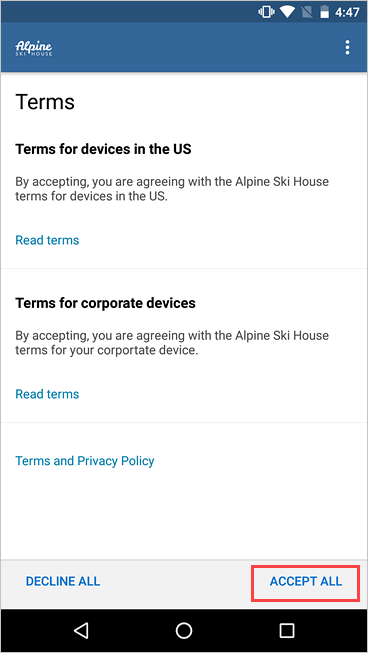
If you're prompted to accept your organization's terms and conditions, tap ACCEPT ALL.
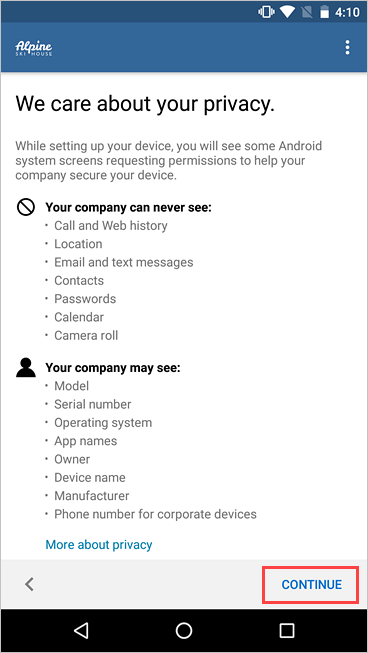
Review what your organization can and can't see. Then tap CONTINUE.
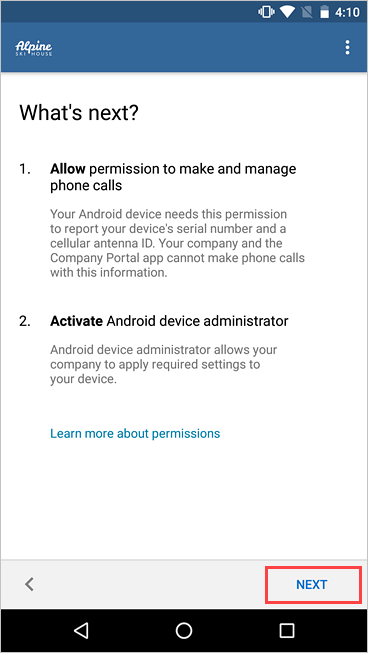
Review what to expect in the upcoming steps. Then tap NEXT.
Depending on your version of Android, you might be prompted to allow access to certain parts of your device. These prompts are required by Google and not controlled by Microsoft.
Tap Allow for the following permissions:
If you deny permission, you'll be prompted again the next time you sign in to Company Portal. To turn off these messages, select Never ask again. To manage app permissions, go to the Settings app > Apps > Company Portal > Permissions > Phone.
Activate the device admin app.
Company Portal needs device administrator permissions to securely manage your device. Activating the app lets your organization identify possible security issues, such as repeated failed attempts to unlock your device, and respond appropriately.
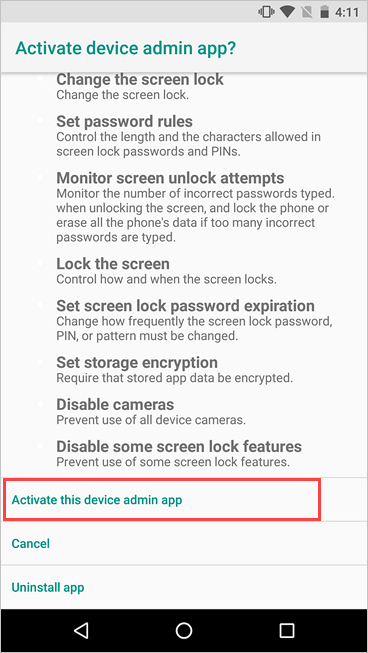
Note
Microsoft does not control the messaging on this screen. We understand that its phrasing can seem somewhat drastic. Company Portal can't specify which restrictions and access are relevant to your organization. If you have questions about how your organization uses the app, contact your IT support person. Go to the Company Portal website to find your organization's contact information.
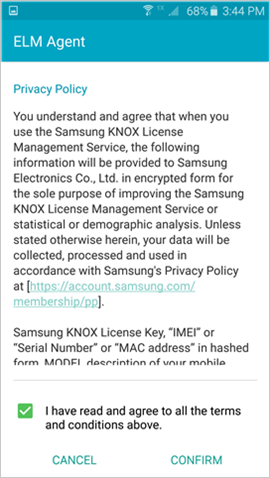
Your device begins enrolling. If you're using a Samsung Knox device, you'll be prompted to review and acknowledge the ELM Agent privacy policy first.
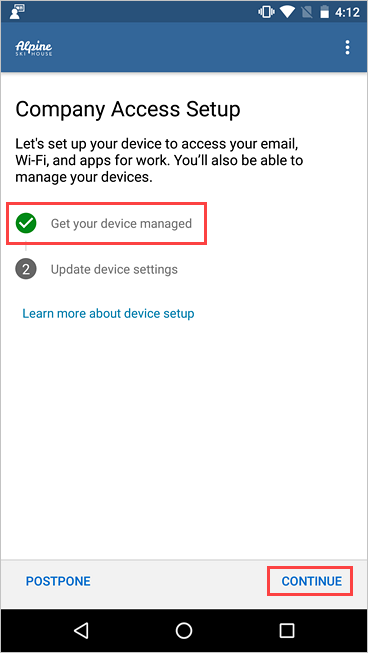
On the Company Access Setup screen, check that your device is enrolled. Then tap CONTINUE.
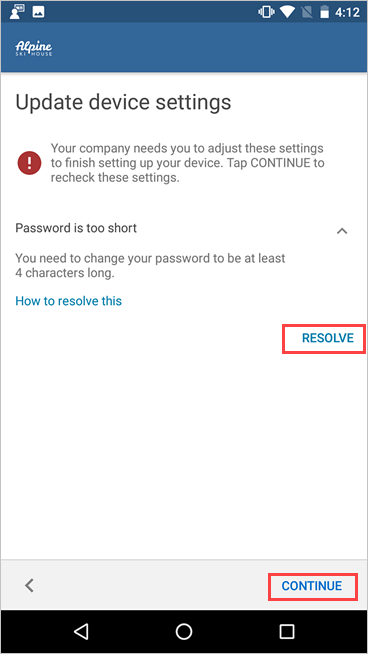
Your organization might require you to update your device settings. Tap RESOLVE to adjust a setting. When you're done updating settings, tap CONTINUE.
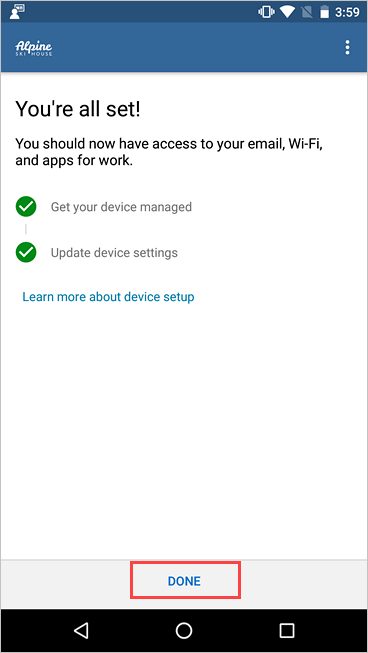
When setup is complete, tap DONE.
Before you try to install a school or work app, go to Settings > Security, and turn on Unknown sources. If you don't turn on this option, you'll see the following message when you try to install an app: "Install blocked. For security reasons, your device is set to block installations of apps obtained from unknown sources." You can tap Settings on the message to go directly to Unknown sources.
Note
If your organization is using telecom expense management software, you will have an additional few steps to complete before your device is fully enrolled. Find out more here.
If you get an error while you try to enroll your device in Intune, you can email your company support.
Still need help? Contact your company support. For contact information, check the Company Portal website.
https://docs.microsoft.com/en-us/mem/intune/enrollment/device-enrollment-program-enroll-ios
Important
Apple recently changed from using the Apple Device Enrollment Program (DEP) to using Apple Automated Device Enrollment (ADE). The Microsoft Intune user interface doesn't currently reflect that change. Currently, you'll still see Device Enrollment Program in the Intune portal. Wherever you see references to DEP, Intune now uses Automated Device Enrollment.
You can set up Intune to enroll iOS/iPadOS devices purchased through Apple's Automated Device Enrollment (ADE). Automated Device Enrollment lets you enroll large numbers of devices without ever touching them. Devices like iPhones, iPads, and MacBooks can be shipped directly to users. When a user turns on the device, Setup Assistant, which includes the typical out-of-box-experience for Apple products, runs with preconfigured settings and the device enrolls into management.
To enable ADE, you use the Intune portal and either the Apple Business Manager (ABM) portal or the Apple School Manager (ASM) portal. In either Apple portal, you need a list of serial numbers or a purchase order so you can assign devices to Intune for management. You create ADE enrollment profiles in Intune. These profiles contain settings that are applied to devices during enrollment. ADE can't be used with a Device Enrollment Manager account.
Note
ADE sets device configurations that can't necessarily be removed by end users. Therefore, before ADE is used, the device must be wiped to return it to an out-of-box (new) state. For more information, see Deployment guide: Enroll iOS and iPadOS devices.
If you experience sync problems during the enrollment process, you can look for solutions at Troubleshoot iOS/iPadOS device enrollment problems.
ADE enrollments aren't compatible with the App Store version of the Company Portal app. You can give users access to the Company Portal app on an ADE device. You might want to provide this access for one of the following reasons:
To enable modern authentication during enrollment, push the app to the device by using Install Company Portal with VPP (Volume Purchase Program) in the ADE profile. For more information, see Automatically enroll iOS/iPadOS devices with Apple's ADE.
To enable Company Portal to update automatically and provide the Company Portal app on devices already enrolled with ADE, deploy the Company Portal app through Intune as a required VPP app with an application configuration policy applied. Deploy the Company Portal app in this way to enable Device Staging. With Device Staging, a device is fully enrolled and receives device policies before the addition of a user affinity.
Apple introduced supervised mode in iOS/iPadOS 5. An iOS/iPadOS device in supervised mode provides more management control, like blocking of screen captures and blocking of the installation of apps from App Store. So it's especially useful for corporate-owned devices. Intune supports configuring devices for supervised mode as part of ADE.
Support for unsupervised ADE devices was deprecated in iOS/iPadOS 11. In iOS/iPadOS 11 and later, ADE-configured devices should always be supervised. The ADE is_supervised flag will be ignored in iOS/iPadOS 13.0 and later. All iOS/iPadOS devices with version 13.0 and later are automatically supervised when enrolled with Automated Device Enrollment.
Before you can enroll iOS/iPadOS devices with ADE, you need an ADE token (.p7m) file from Apple. This token lets Intune sync information about ADE devices that your corporation owns. It also allows Intune to upload enrollment profiles to Apple and to assign devices to those profiles.
You use the Apple Business Manager (ABM) or Apple School Manager (ASM) portal to create a token. You also use the ABM or ASM portal to assign devices to Intune for management.
Note
You can use either the ABM portal or the ASM portal to enable ADE. The rest of this article refers to the ABM portal, but the steps are the same for both portals.
Note
If you delete the token from the Intune classic portal before you migrate to Azure, Intune might restore a deleted Apple ADE token. You can delete the ADE token again from the Azure portal.
In Microsoft Endpoint Manager admin center, select Devices > iOS/iPadOS > iOS/iPadOS enrollment:

Select Enrollment Program Tokens > Add.
On the Basics tab:
Select I agree to give permission to Microsoft to send user and device information to Apple:
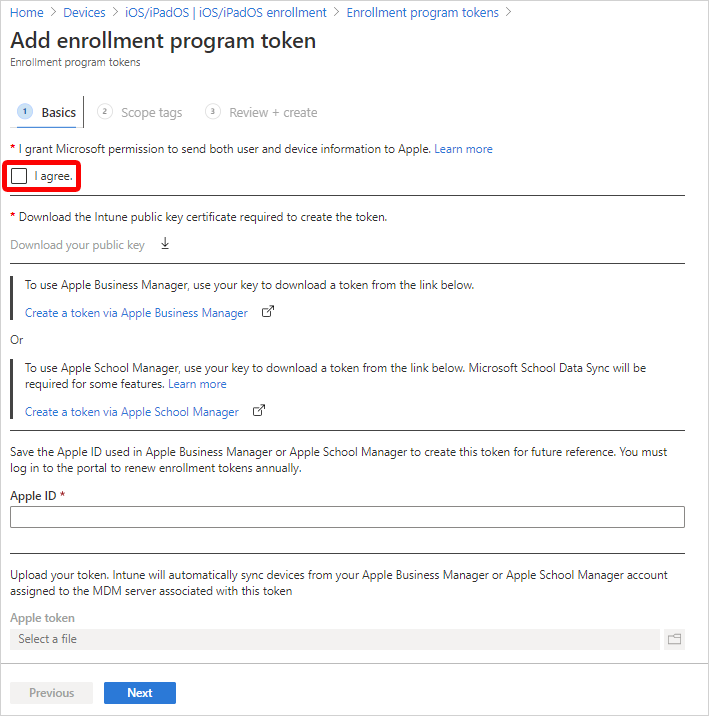
Select Download the Intune public key certificate required to create the token. This step downloads and saves the encryption key (.pem) file locally. The .pem file is used to request a trust-relationship certificate from the Apple Business Manager portal.
You'll upload this .pem file in Apple Business Manager in Step 2: Go to the Apple Business Manager portal (in this article).
Keep this web browser tab and page open. If you close the tab:
Use the Apple Business Manager portal to create and renew your ADE token (MDM server). This token is added to Intune and communicates between Intune and Apple.
Note
The following steps describe what you need to do in Apple Business Manager. For the specific steps, refer to Apple's documentation. Apple Business Manager User Guide (on Apple's website) might be helpful.
In Apple Business Manager, sign in with your company's Apple ID.
In this portal, complete the following steps.
In settings, all tokens are shown. Add an MDM server, and upload the public key certificate (.pem file) that you downloaded from Intune in Step 1: Download the Intune public key certificate (in this article).
Use the server name to identify the mobile device management (MDM) server. It isn't the name or URL of the Microsoft Intune service.
After you save the MDM server, select it, and then download the token (.p7m file). You'll upload this .p7m token in Intune in Step 4: Upload your token and finish (in this article).
In your web browser, go back to the Add enrollment program token page in Intune. You should have kept this page open, as noted in Step 1: Download the Intune public key certificate (in this article).
In Apple ID, enter your ID. This step saves the ID. The ID can be used in the future.
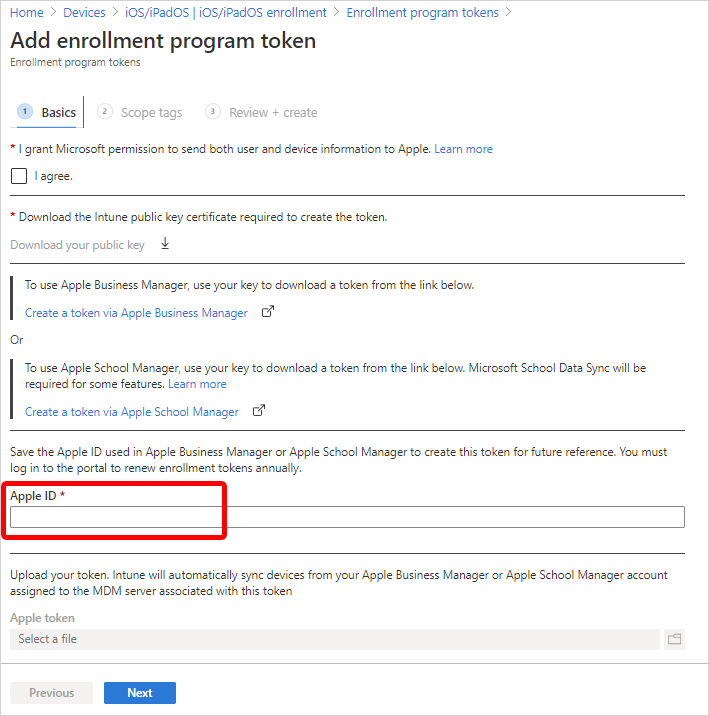
In Apple token, browse to the .p7m certificate file, and then select Open.
You downloaded this .p7m token in Step 2: Go to the Apple Business Manager portal.
Select Next.
(Optional.) If you want to apply scope tags to this ADE token, click Select scope tags, and then select existing scope tags. Scope tags applied to a token are inherited by profiles and devices added to the token.
For more information on scope tags, see Use role-based access control (RBAC) and scope tags for distributed IT.
Select Next.
On the Review + create tab, select Create.
With the push certificate, Intune can enroll and manage iOS/iPadOS devices by pushing policies to enrolled mobile devices. Intune automatically synchronizes with Apple to access your enrollment program account.
Now that you've installed your token, you can create an enrollment profile for ADE devices. A device enrollment profile defines the settings applied to a group of devices during enrollment. There's a limit of 1,000 enrollment profiles per ADE token.
Note
Devices will be blocked if there aren't enough Company Portal licenses for a VPP token or if the token is expired. Intune will display an alert when a token is about to expire or licenses are running low.
In Microsoft Endpoint Manager admin center, select Devices > iOS/iPadOS > iOS/iPadOS enrollment > Enrollment Program Tokens.
Select a token, and then select Profiles > Create profile > iOS/iPadOS:

On the Basics tab, enter a Name and Description for the profile for administrative purposes. Users don't see these details.
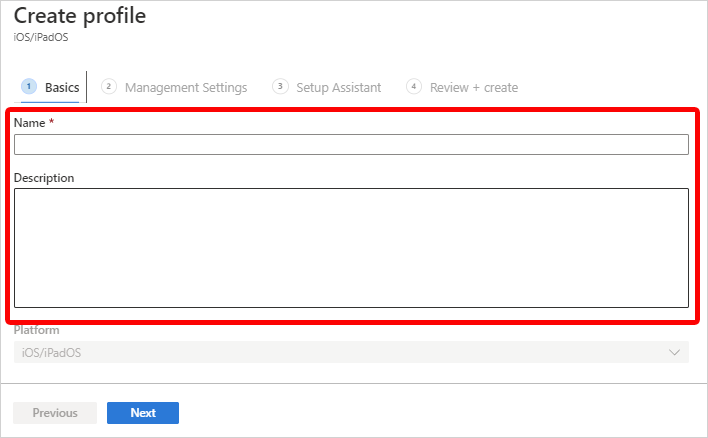
Select Next.
In the User Affinity list, select an option that determines whether devices with this profile must enroll with or without an assigned user.
Enroll with User Affinity. Select this option for devices that belong to users who want to use Company Portal for services like installing apps. If you're using Active Directory Federation Services and you're using Setup Assistant to authenticate, a WS-Trust 1.3 Username/Mixed endpoint is required. Learn more.
Enroll without User Affinity. Select this option for devices that aren't affiliated with a single user. Use this option for devices that don't access local user data. This option is typically used for kiosk, point of sale (POS), or shared-utility devices.
In some situations, you might want to associate a primary user on devices enrolled without user affinity. To do this task, you can send the IntuneUDAUserlessDevice key to the Company Portal app in an app configuration policy for managed devices. The first user that signs in to the Company Portal app is established as the primary user. If the first user signs out and a second user signs in, the first user remains the primary user of the device. For more information, see Configure the Company Portal app to support iOS and iPadOS ADE devices.
If you chose Enroll with User Affinity, you can let users authenticate with Company Portal instead of the Apple Setup Assistant:

Note
Authenticate with the Company Portal app if you want to:
These features aren't supported when you authenticate by using Apple Setup Assistant.
For more information on enrolling iOS/iPadOS devices, see Deployment guide: Enroll iOS and iPadOS devices in Microsoft Intune.
If you selected Company Portal for your authentication method, you can use a VPP token to automatically install Company Portal on the device. In this case, the user doesn't have to provide an Apple ID. To install Company Portal by using a VPP token, select a token in Install Company Portal with VPP. You need to have already added Company Portal to the VPP token. To ensure that Company Portal continues to be updated after enrollment, make sure that you've configured an app deployment in Intune (Intune > Client Apps).
To ensure that user interaction isn't required, you'll probably want to make Company Portal an iOS/iPadOS VPP app, make it a required app, and use device licensing for the assignment. Make sure that the token doesn't expire and that you have enough device licenses for Company Portal. If the token expires or runs out of licenses, Intune installs the App Store Company Portal instead and prompts for an Apple ID.
Note
If you set the authentication method to Company Portal, make sure that the device enrollment process is completed within the first 24 hours of the Company Portal download to the ADE device. Otherwise enrollment might fail, and a factory reset will be needed to enroll the device.
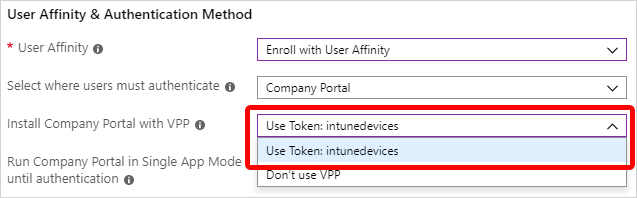
If you selected Setup Assistant for the authentication method but you also want to use Conditional Access or deploy company apps on the devices, you need to install Company Portal on the devices and sign in to complete the Azure AD registration. To do so, select Yes for Install Company Portal. If you want users to receive Company Portal without having to authenticate in to the App Store, in Install Company Portal with VPP, select a VPP token. Make sure the token doesn't expire and that you have enough device licenses for the Company Portal app to deploy correctly.
If you select a token for Install Company Portal with VPP, you can lock the device in Single App Mode (specifically, the Company Portal app) right after the Setup Assistant completes. Select Yes for Run Company Portal in Single App Mode until authentication to set this option. To use the device, the user must first authenticate by signing in with Company Portal.
Multifactor authentication isn't supported on a single device locked in Single App Mode. This limitation exists because the device can't switch to a different app to complete the second factor of authentication. If you want multifactor authentication on a Single App Mode device, the second factor must be on a different device.
This feature is supported only for iOS/iPadOS 11.3.1 and later.

If you want devices using this profile to be supervised, select Yes in the Supervised list:

Supervised devices give you more management options and disabled Activation Lock by default. Microsoft recommends that you use ADE as the mechanism for enabling supervised mode, especially if you're deploying large numbers of iOS/iPadOS devices. Apple Shared iPad for Business devices must be supervised.
Users are notified that their devices are supervised in two ways:
Note
If a device is enrolled without supervision, you need to use Apple Configurator if you want to set it to supervised. To reset the device in this way, you need to connect it to a Mac with a USB cable. For more information, see Apple Configurator Help.
In the Locked enrollment list, select Yes or No. Locked enrollment disables iOS/iPadOS settings that allow the management profile to be removed from the Settings menu. After device enrollment, you can't change this setting without wiping the device. To use this option, the device must have the Supervised management option set to Yes.
Note
If a device is enrolled with locked enrollment, the user won't be able to use Remove Device or Factory Reset in the Company Portal app. The options will be unavailable to the user. Also, the user won't be able to remove the device on the Company Portal website.
If a BYOD device is converted to an Apple ADE device and enrolled with a profile that has locked enrollment enabled, the user will be allowed to use Remove Device and Factory Reset for 30 days. After 30 days, the options will be disabled or unavailable. For more information, see Prepare devices manually.
If you selected Enroll without User Affinity and Supervised in the previous steps, you need to decide whether to configure the devices to be Apple Shared iPad for Business devices. If you select Yes for Shared iPad, multiple users will be able to sign in to a single device. Users will authenticate by using their Managed Apple IDs and federated authentication accounts or by using a temporary session (like the Guest account). This option requires iOS/iPadOS 13.4 or later.
If you configured your devices as Apple Shared iPad for Business devices, you need to set Maximum cached users. Set this value to the number of users that you expect to use the shared iPad. You can cache up to 24 users on a 32-GB or 64-GB device. If you choose a low number, it might take a while for your users' data to appear on their devices after they sign in. If you choose a high number, your users might not have enough disk space.
Note
If you want to set up Apple Shared iPad for Business, configure these settings:
Temporary sessions are enabled by default and allow your users to sign in to a shared iPad without a Managed Apple ID account. You can disable temporary sessions on shared iPads by configuring iOS/iPadOS Shared iPad device restriction settings.
In the Sync with computers list, select an option for the devices that use this profile. If you select Allow Apple Configurator by certificate, you need to choose a certificate under Apple Configurator Certificates. For iOS/iPadOS 13.0 and later, Apple deprecated this setting.
Note
If you set Sync with computers to Deny all, the port will be limited on iOS and iPadOS devices. The port will be limited to only charging. It will be blocked from using iTunes or Apple Configurator 2.
If you set Sync with computers to Allow Apple Configurator by certificate, make sure you have a local copy of the certificate that you can use later. You won't be able to make changes to the uploaded copy, and it's important to retain an copy of this certificate. If you want to connect to the iOS/iPadOS device from a macOS device or PC, the same certificate must be installed on the device making the connection to the iOS/iPadOS device.
If you selected Allow Apple Configurator by certificate in the previous step, choose an Apple Configurator certificate to import.
You can specify a naming format for devices that's automatically applied when they're enrolled and upon each successive check-in. To create a naming template, select Yes under Apply device name template. Then, in the Device Name Template box, enter the template to use for the names that use this profile. You can specify a template format that includes the device type and serial number. This feature supports iPhone, iPad, and iPod Touch.
Select Next: Setup Assistant Customization.
On the Setup Assistant Customization tab, configure the following profile settings:
You can choose to hide Setup Assistant screens on the device during user setup.
Select Next to go to the Review + create tab.
To save the profile, select Create.
Note
If you need to re-enroll your Automated Device Enrollment device, you need to first add the serial number of the device as a corporate identifier. You might need to re-enroll your ADE device if you're troubleshooting a problem, like if the device isn't receiving policy. To re-enroll:
You can use the enrollment Name field to create a dynamic group in Azure Active Directory (Azure AD). For more information, see Azure Active Directory dynamic groups.
You can use the profile name to define the enrollmentProfileName parameter to assign devices with this enrollment profile.
For the fastest policy delivery on ADE devices that have user affinity, make sure the enrolling user is a member, before device setup, of an Azure AD user group.
If you assign dynamic groups to enrollment profiles, there might be a delay in delivering applications and policies to devices after the enrollment.
Now that Intune has permission to manage your devices, you can synchronize Intune with Apple to see your managed devices in Intune in the Azure portal.
In Microsoft Endpoint Manager admin center, select Devices > iOS/iPadOS > iOS/iPadOS enrollment > Enrollment Program Tokens.
Select a token in the list, and then select Devices > Sync:
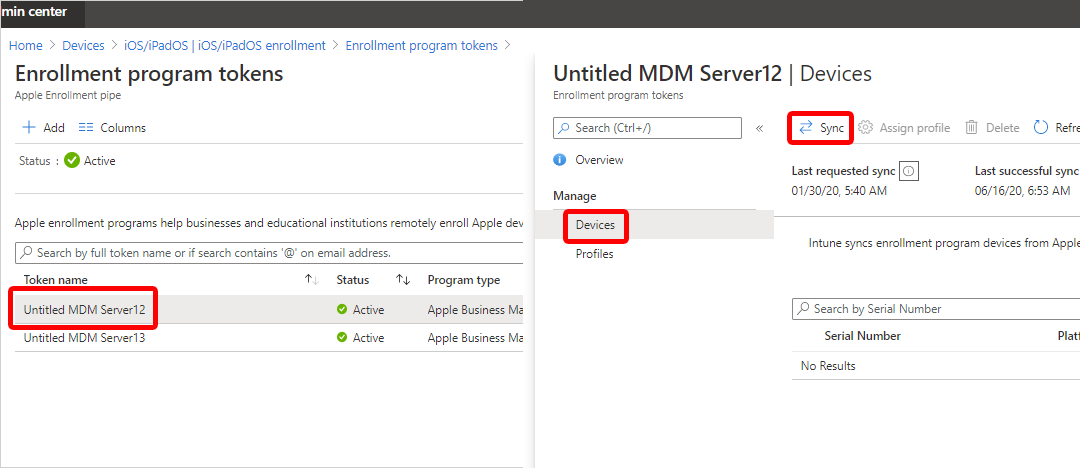
To follow Apple's terms for acceptable enrollment program traffic, Intune imposes the following restrictions:
Before devices can be enrolled, you need to assign an enrollment program profile to them.
Note
You can also assign serial numbers to profiles in the Apple Serial Numbers pane.
You can pick a default profile to be applied to all devices that enroll with a specific token.
You enabled management and syncing between Apple and Intune and assigned a profile so your ADE devices can be enrolled. You're now ready to distribute devices to users. Some things to know:
Devices enrolled with user affinity require that each user be assigned an Intune license.
Devices enrolled without user affinity typically don't have any associated users. These devices need to have an Intune device license. If devices enrolled without user affinity will be used by an Intune-licensed user, a device license isn't needed.
To summarize, if a device has a user, the user needs to have an assigned Intune license. If the device doesn't have an Intune-licensed user, the device needs to have an Intune device license.
For more information on Intune licensing, see Microsoft Intune licensing and the Intune planning guide.
A device that's been activated needs to be wiped before it can enroll in Intune. After it's been wiped, you can apply the enrollment profile.
If you're enrolling with ADE and user affinity, the following error can happen during setup:
The SCEP server returned an invalid response.
To resolve this error, you need to factory reset the device. This error occurs because of a 15-minute time limit on SCEP certificates, which is enforced for security.
For information on the end-user experience, see Enroll your iOS/iPadOS device in Intune by using ADE.
You'll sometimes need to renew your tokens:
Go to business.apple.com and sign in with an account that has an Administrator or Device Enrollment Manager role.
Select Settings. Under MDM Servers, select the MDM server associated with the token file that you want to renew. Select Download Token:
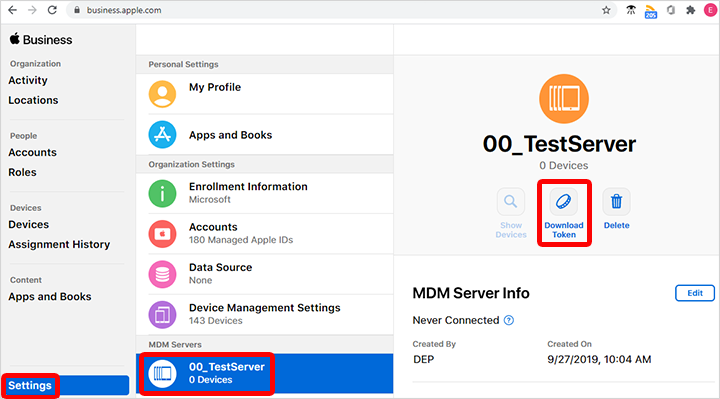
Select Download Server Token.
Note
As it says in the prompt, don't select Download Server Token if you don't intend to renew the token. Doing so will invalidate the token being used by Intune (or any other MDM solution). If you already downloaded the token, be sure to continue with the next steps until the token is renewed.
After you download the token, go to Microsoft Endpoint Manager admin center. Select Devices > iOS/iPadOS > iOS/iPadOS enrollment > Enrollment program tokens. Select the token.
Select Renew token. Enter the Apple ID used to create the original token (if it's not automatically populated):

Upload the newly downloaded token.
Select Next to go to the Scope tags page. Assign scope tags if you want to.
Select Renew token. You'll see a confirmation that the token is renewed:
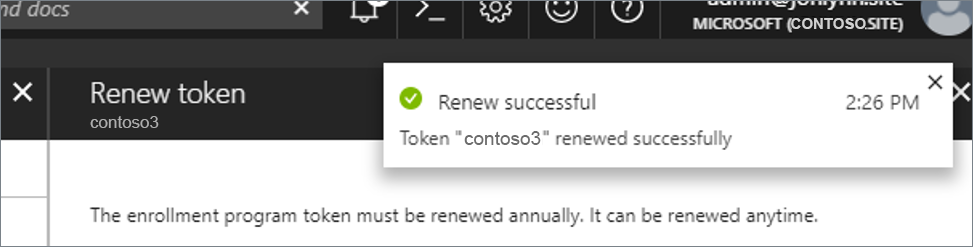
You can delete an enrollment profile token from Intune as long as:
To delete an enrollment profile token:
Backup and restore scenarios for iOS/iPadOS
iOS/iPadOS enrollment overview
https://docs.microsoft.com/en-us/mem/intune/user-help/enroll-your-device-in-intune-macos-cp
Enroll your macOS device with the Intune Company Portal app to gain secure access to your work or school email, files, and apps.
Organizations typically require you to enroll your device before you can access proprietary data. After your device is enrolled, it becomes managed. Your organization can assign policies and apps to the device through a mobile device management (MDM) provider, such as Intune. To get continuous access to work or school information on your device, you must set up your device to match your organization's policy settings.
This article describes how to use the Company Portal app for macOS to set up and maintain your device so that you meet your organization's requirements.
During initial setup, the Company Portal app requires you to sign in and authenticate yourself with your organization. Company Portal then informs you of any device settings you need to configure to meet your organization's requirements. For example, organizations often set minimum or maximum character password requirements that you'll be required to meet.
After you enroll your device, Company Portal will always make sure that your device is protected according to your organization's requirements. For example, if you install an app from a source that's not trusted, Company Portal will alert you and might restrict access to your organization's resources. App protection policies like this one are common. To regain access, you'll likely need to uninstall the app.
If after enrollment your organization enforces a new security requirement, such as multi-factor authentication, Company Portal will notify you. You'll have the chance to adjust your settings so that you can continue to work from your device.
To learn more about enrollment, see What happens when I install the Company Portal app and enroll my device?.
Use the following steps to enroll your macOS device with your organization. Your device must be running macOS 10.12 or later.
Note
Throughout this process, you might be prompted to allow Company Portal to use confidential information that's stored in your keychain. These prompts are part of Apple security. When you get the prompt, type in your login keychain password and select Always Allow. If you press Enter or Return on your keyboard, the prompt will instead select Allow, which may result in additional prompts.
Important
Microsoft AutoUpdate might open to update your Microsoft software. After all updates are installed, open the Company Portal app. For the best setup experience, install the latest versions of Microsoft AutoUpdate and Company Portal.
Sign in to Company Portal with your work or school account.
When the app opens, select Begin.
Review what your organization can and can't see on your enrolled device. Then select Continue.
On the Install management profile screen, select Download profile.
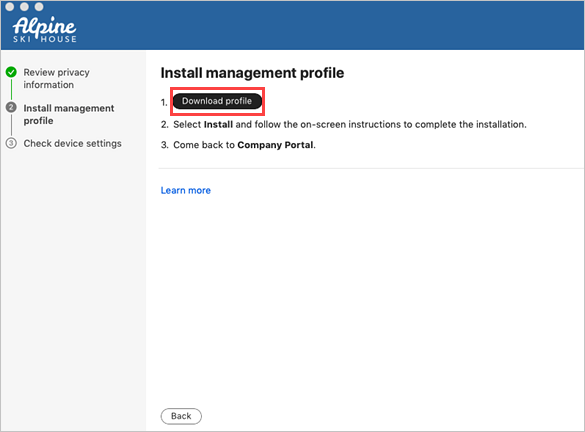
Your device's system preferences will open.
a. Select Install and then select Install again.
b. If you’re prompted to, enter your device password.
Once the profile is installed, it will appear in the profiles list under Management Profile. 
Return to Company Portal.
Your organization might require you to update your device settings. When you're done updating settings, select Retry.
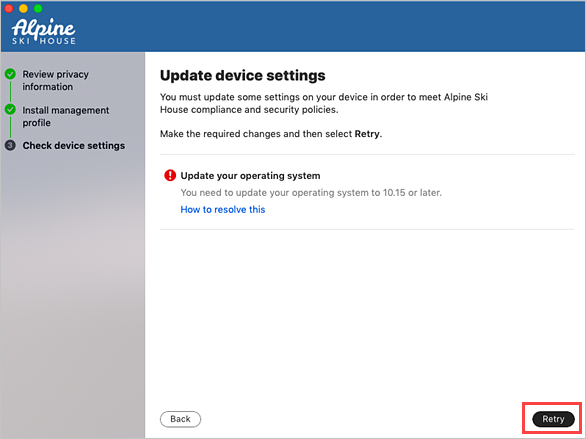
When setup is complete, select Done.
If you run into issues during enrollment, go to Help > Send Diagnostic Report to report the issue to Microsoft app developers. This information is used to help improve the app. They'll also use this information to help resolve the problem if your IT support person reaches out to them for help.
After you report the problem to Microsoft, you can send the details of your experience to your IT support person. Select Email Details. Type in what you experienced in the body of the email. To find your support person's email address, go to the Company Portal app > Contact. Or check the Company Portal website.
Additionally, the Microsoft Intune Company Portal team would love to hear your feedback. Go to Help > Send Feedback to share your thoughts and ideas.
When you view the installed mobile device management (MDM) profiles in System Preferences > Profiles, some profiles might show an unverified status. As long as the management profile shows a verified status, you don't need to be concerned.
The management profile is what defines the MDM channel connection. As long as the management profile is verified, any other profiles delivered to the machine via that channel inherit the security traits of the management profile.
Updating the Company Portal app is done the same way as any other Office app, through Microsoft AutoUpdate for macOS. Find out more about updating Microsoft apps for macOS.
Still need help? Contact your company support. For contact information, check the Company Portal website.
https://docs.microsoft.com/en-us/mem/intune/apps/apps-add
Before you can configure, assign, protect, or monitor apps, you must add them to Microsoft Intune.
The users of apps and devices at your company (your company's workforce) might have several app requirements. Before adding apps to Intune and making them available to your workforce, you may find it helpful to assess and understand a few app fundamentals. There are various types of apps that are available for Intune. You must determine app requirements that are needed by the users at your company, such as the platforms and capabilities that your workforce needs. You must determine whether to use Intune to manage the devices (including apps) or have Intune manage the apps without managing the devices. Also, you must determine the apps and capabilities that your workforce needs, and who needs them. The information in this article helps you get started.
Intune supports a wide range of app types. The available options differ for each app type. Intune lets you add and assign the following app types:
The following table lists the specific app types and how you can add them in the Intune Add app pane:
1 For more information about Android Enterprise and Android work profiles, see Understanding licensed apps below.
You can add an app in Microsoft Intune by selecting Apps > All apps > Add. The Select app type pane is displayed and allows you to select the App type.
Tip
An LOB app is one that you add from an app installation file. For example, to install an iOS/iPadOS LOB app, you add the application by selecting Line-of-business app as the App type in the Select app type pane. You then select the app package file (extension .ipa). These types of apps are typically written in-house.
As an IT Admin, you determine not only which apps your group must use, but you also determine the capabilities needed for each group and subgroup. For each app, you determine the platforms needed, the groups of users that need the app, the configuration policies to apply for those groups, and the protection policies to apply.
Additionally, you must determine whether to focus on Mobile Device Management (MDM) or only on Mobile Application Management (MAM).
Using Intune to manage the device with MDM is useful when:
Using Intune to manage apps with MAM without managing the device is useful when:
For more information, Compare MDM and MAM.
As you're determining which apps your workforce needs, consider the various groups of users and the various apps they use. Knowing these groups is also helpful after you've added an app. After you add an app, you assign a group of users that can use the app.
First, you must determine which group should have access to the app, based on the sensitivity of the data the app contains. You might need to include or exclude certain types of roles within your organization. For example, only certain LOB apps might be required for your sales group, whereas people focused on engineering, finance, HR, or legal might not need to use the LOB apps. In addition, your sales group might need additional data protection and access to internal corporate services on their mobile devices. You must determine how this group will connect to resources using the app. Will the data that the app accesses live in the cloud or on-premises? Also, how will the users connect to resources by using the app?
Intune also supports enabling access to client apps that require secure access to on-premises data, such as line-of-business app servers. You ordinarily provide this type of access by using Intune-managed certificates for access control, combined with a standard VPN gateway or proxy in the perimeter, such as Azure Active Directory Application Proxy. The Intune App Wrapping Tool and App SDK can help contain the accessed data within your line-of-business app, so that it can't pass corporate data to consumer apps or services.
Use the Intune deployment planning, design and implementation guide to help determine how you identify the organizational groups. For information about assigning apps to groups, see Assign apps to groups with Microsoft Intune.
You can choose from the following app types:
As you're determining which apps your organization needs, consider how the apps integrate with cloud services, what data the apps access, whether the apps are available to BYOD users, and whether the apps require internet access.
For more information about the types of apps that your organization needs, Create a design.
Intune lets you modify the functionality of apps that you deploy to help align them with your company's compliance and security policies. This control allows you to determine how your company data is protected. Intune-managed apps are enabled with a rich set of mobile application protection policies, such as:
Intune-managed apps can also enable app protection without requiring enrollment, which gives you the choice of applying data loss-prevention policies without managing the user's device. Additionally, you can incorporate mobile-app management in your mobile and line-of-business apps by using the Intune App SDK and App Wrapping Tool. For more information about these tools, see Intune App SDK overview.
In addition to understanding web apps, store apps, and LOB apps, you should also be aware of the destination of volume-purchase-program apps and licensed apps, such as:
Apple Volume Purchasing Program for Business (iOS): The iOS/iPadOS App Store lets you purchase multiple licenses for an app that you want to run in your company. Purchasing multiple copies helps you to efficiently manage apps in your company. For more information, see Manage iOiOS/iPadOSS volume-purchased apps.
Android Enterprise fully managed work profile: How you assign apps to Android Enterprise fully managed work profile devices differs from how you assign them to standard Android devices. All apps you install for Android Enterprise fully managed work profiles come from the Managed Google Play store. You use Intune to browse for the apps you want and approve them. The app then appears in the Licensed apps node of the Azure portal, and you can manage assignment of the app as you would any other app.
Microsoft Store for Business (Windows 10): Microsoft Store for Business gives you a place to find and purchase apps for your organization, individually or in volume. By connecting the store to Microsoft Intune, you can manage volume-purchased apps in the Azure portal. For more information, see Manage apps from Microsoft Store for Business.
Note
The file extensions for Windows apps include .msi, .appx, .appxbundle, .msix and .msixbundle.
Before you begin to add and assign apps, consider the following points:
Important
If you change the name of the app through the Intune azure portal after you have deployed and installed the app, the app will no longer be able to be targeted using commands.
All apps that you create by using the software installer installation type (for example, a line-of-business app) are packaged and uploaded to Intune cloud storage. A trial subscription of Intune includes 2 gigabytes (GB) of cloud-based storage that is used to store managed apps and updates. A full subscription does not limit the total amount of storage space.
Requirements for cloud storage space are as follows:
All app installation files must be in the same folder.
The maximum file size for any file that you upload is 8 GB.
Note
Windows Line-of-business (LOB) apps, including Win32, Windows Universal AppX, Windows Universal AppX bundle, Windows Universal MSI X, and Windows Universal MSI X bundle, have a maximum size limit of 8 GB per app. All other LOB apps, including iOS/iPadOS LOB apps, have a maximum size limit of 2 GB per app.
App categories can be used to help you sort apps to make them easier for users to find in the company portal. You can assign one or more categories to an app, for example, Developer apps or Communication apps.
When you add an app to Intune, you are given the option to select the category you want. Use the platform-specific topics to add an app and assign categories. To create and edit your own categories, use the following procedure:
Previously, Intune contained a number of built-in apps that you could quickly assign. Based on Intune customer feedback, we removed this list, and the built-in apps are no longer displayed. However, if you have already assigned any built-in apps, the apps remain visible in the list of apps. You can continue to assign the apps as required.
Note
For the installation of a required non-Line-of-Business app, Intune will attempt to install the app by sending an install command whenever the device checks-in, given that the app is not detected and the app's install state is not Install Pending.
Intune will automatically reinstall, update, or remove a required app within 24 hours, rather than waiting for the 7 day re-evaluation cycle.
Intune will automatically reinstall, update, or remove a required app based on the following conditions:
When you need to uninstall an app from user's devices, use the following steps.
Important
To uninstall the app successfully, make sure to remove the members or group assignment for install before assigning them to be uninstalled. If a group is assigned to both install an app and uninstall an app, the app will remain and not be removed.
For details about Intune app installation errors, see App installation errors.
To learn how to add apps for each platform to Intune, see:
IT Consultant


