inCOREporation

Technology and Security Solutions

Showing posts with label DNS. Show all posts

Saturday, April 25, 2020

Flush DNS

Flush DNS
As addressed at https://support.pearson.com/getsupport/s/article/Reset-an-Internet-Connection-Flush-DNS


Reset an Internet Connection (Flush DNS)

How to reset your Internet connection by flushing the DNS of your connection.
Aug 1, 2019•Knowledge


Issue
I'm having problems accessing Pearson websites or programs and I've already tried all Recommended Browser Settings.
Looking for other Pearson Tech Support help? See the General Tech Support Troubleshooting overview page to learn more.
FAQ
How do I flush the DNS or reset my computer's connection to the Internet?

The instructions to flush your DNS are different depending on your computer, see the section below for instructions that fit your setup.
Detailed Instructions
If you have cleared your browser's temporary files and cookies and adjusted your settings, there may be an issue with the way the network is configured. To correct it, please flush and reset the DNS by following the instructions below. You may also need to restart your modem and/or router (sometimes referred to as a power cycle).
Note: If you are using a public or shared computer, you may need to ask a network administrator to perform these steps.

Choose your computers operating system to see detailed instructions:
Windows 10, 8 and 8.1
Windows 7
Windows XP and Vista
Mac OS X
Windows
Note: These instructions will require you to use the Windows command prompt. For information about using the command prompt, please visit http://windows.microsoft.com/en-us/windows/command-prompt-faq.
Windows 10. 8 and 8.1
Navigate to the desktop. (From Home, tap or click the Desktop tile).
Right-click the Start button (the Windows logo in the lower-left).
Choose Command Prompt (Admin).
When asked whether to allow Command Prompt to make changes to your computer, select Yes.

Note: If you are asked for an administrative login, you will need to contact your system administrator.
Type "ipconfig /flushdns" and press Enter.
Type "ipconfig /registerdns" and press Enter.
Type "ipconfig /release" and press Enter.
Type "ipconfig /renew" and press Enter.
Type "netsh winsock reset" and press Enter.
Restart the computer.
Windows 7
Click Start > All Programs > Accessories.
Right-click Command Prompt and choose Run as administrator.
When asked whether to allow Command Prompt to make changes to your computer, select Yes.

Note: If you are asked for an administrative login, you will need to contact your system administrator.
Type "ipconfig /flushdns" and press Enter.
Type "ipconfig /registerdns" and press Enter.
Type "ipconfig /release" and press Enter.
Type "ipconfig /renew" and press Enter.
Type "netsh winsock reset" and press Enter.
Restart the computer.
XP and Vista
Close all browser windows.
Click Start > All Programs > Accessories > Command Prompt.
Type the following at the command prompt: ipconfig /flushdns
If the command was successful, you will see the message, "DNS Resolver Cache Successfully Flushed."
If you receive the message, "Action Requires Elevation" please contact the administrator of your computer to complete these steps.
Mac OS X
Close all browser windows.
Click Applications > Utilities > Terminal.
In the Terminal window, type in the corresponding command for your Mac OS X version:
OS X 10.10 (Yosemite): sudo discoveryutil mdnsflushcache
OS X 10.7 - 10.9 (Mavericks, Mountain Lion, and Lion): sudo killall -HUP mDNSResponder
OS X 10.6 and older: sudo dscacheutil -flushcache
Press Enter again and the DNS cache should be flushed.
Additional Steps
If the steps above do not resolve the issue, and you are on a home network, you may need to run a power cycle:
Turn off your computer.
Turn off your modem and router (if you have one), then wait for about 15 seconds.
Plug in your modem, then wait for 1-2 minutes.
Plug in your router (if you have one), then wait for 1-2 minutes.

Turn on your computer.
IT Consultant

www.inCOREporation.com
at April 25, 2020 No comments:
Email ThisBlogThis!Share to XShare to FacebookShare to Pinterest
Labels: DNS

Thursday, July 18, 2019

DNS TOOLS ONLINE NSLOOKUP

DNS TOOLS ONLINE

DNS DIG

https://toolbox.googleapps.com/apps/dig/#A/

Command line
NSLOOKUP -query=
A
AAAA
ANY
CAA
CNAME
MX
NS
PTR
SOA
SRV
TXT

example lead customer

mx-capricab.easydns.com - bgp.he.net


www.inCOREporation.com
at July 18, 2019 No comments:
Email ThisBlogThis!Share to XShare to FacebookShare to Pinterest
Labels: DNS

Monday, March 19, 2018

Integrate your on-premises directories with Azure Active Directory

Integrate your on-premises directories with Azure Active Directory


https://docs.microsoft.com/en-us/azure/active-directory/connect/active-directory-aadconnect

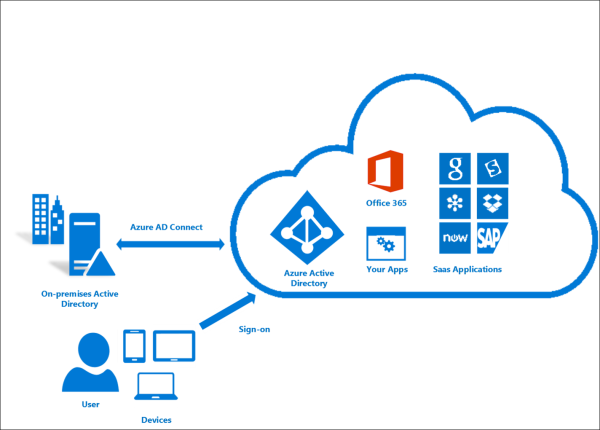
Azure AD Connect will integrate your on-premises directories with Azure Active Directory. This allows you to provide a common identity for your users for Office 365, Azure, and SaaS applications integrated with Azure AD. This topic will guide you through the planning, deployment, and operation steps. It is a collection of links to the topics related to this area.
Important
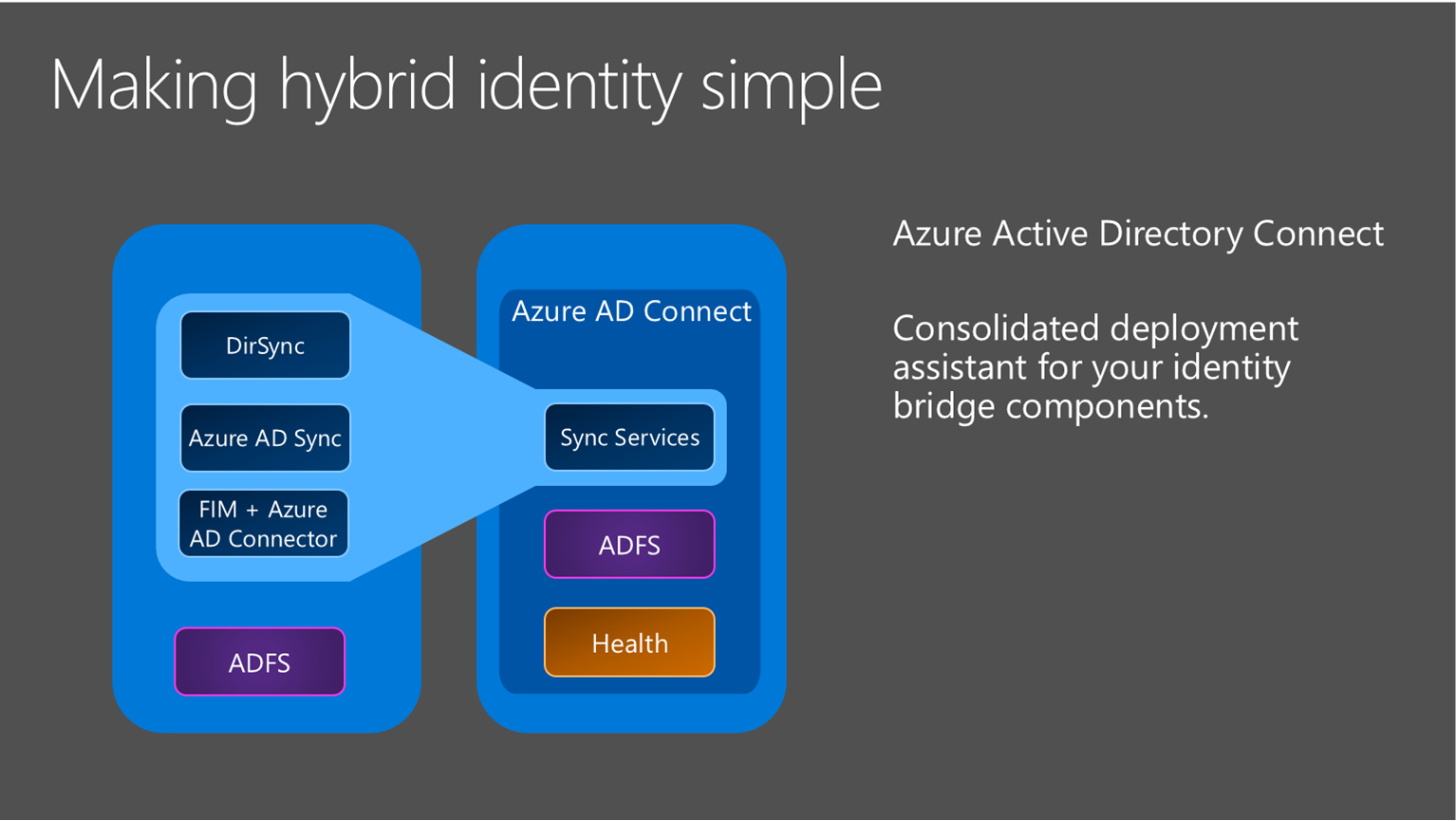
Azure AD Connect is the best way to connect your on-premises directory with Azure AD and Office 365. This is a great time to upgrade to Azure AD Connect from Windows Azure Active Directory Sync (DirSync) or Azure AD Sync as these tools are now deprecated are no longer supported as of April 13, 2017.
What is Azure AD Connect

Why use Azure AD Connect

Integrating your on-premises directories with Azure AD makes your users more productive by providing a common identity for accessing both cloud and on-premises resources. Users and organizations can take advantage of the following:
  • Users can use a single identity to access on-premises applications and cloud services such as Office 365.
  • Single tool to provide an easy deployment experience for synchronization and sign-in.
  • Provides the newest capabilities for your scenarios. Azure AD Connect replaces older versions of identity integration tools such as DirSync and Azure AD Sync. For more information, see Hybrid Identity directory integration tools comparison.

How Azure AD Connect works

Azure Active Directory Connect is made up of three primary components: the synchronization services, the optional Active Directory Federation Services component, and the monitoring component named Azure AD Connect Health.
Azure AD Connect Stack
  • Synchronization - This component is responsible for creating users, groups, and other objects. It is also responsible for making sure identity information for your on-premises users and groups is matching the cloud.
  • AD FS - Federation is an optional part of Azure AD Connect and can be used to configure a hybrid environment using an on-premises AD FS infrastructure. This can be used by organizations to address complex deployments, such as domain join SSO, enforcement of AD sign-in policy, and smart card or 3rd party MFA.
  • Health Monitoring - Azure AD Connect Health can provide robust monitoring and provide a central location in the Azure portal to view this activity. For additional information, see Azure Active Directory Connect Health.

Install Azure AD Connect

You can find the download for Azure AD Connect on Microsoft Download Center.
SolutionScenario
Before you start - Hardware and prerequisites
  • Steps to complete before you start to install Azure AD Connect.
  • Express settings
  • If you have a single forest AD then this is the recommended option to use.
  • User sign in with the same password using password synchronization.
  • Customized settings
  • Used when you have multiple forests. Supports many on-premises topologies.
  • Customize your sign-in option, such as ADFS for federation or use a 3rd party identity provider.
  • Customize synchronization features, such as filtering and writeback.
  • Upgrade from DirSync
  • Used when you have an existing DirSync server already running.
  • Upgrade from Azure AD Sync or Azure AD Connect
  • There are several different methods depending on your preference.
  • After installation you should verify it is working as expected and assign licenses to the users.

    Next steps to Install Azure AD Connect

    TopicLink
    Download Azure AD ConnectDownload Azure AD Connect
    Install using Express settingsExpress installation of Azure AD Connect
    Install using Customized settingsCustom installation of Azure AD Connect
    Upgrade from DirSyncUpgrade from Azure AD sync tool (DirSync)
    After installationVerify the installation and assign licenses

    Learn more about Install Azure AD Connect

    You also want to prepare for operational concerns. You might want to have a stand-by server so you easily can fall over if there is a disaster. If you plan to make frequent configuration changes, you should plan for a staging mode server.
    TopicLink
    Supported topologiesTopologies for Azure AD Connect
    Design conceptsAzure AD Connect design concepts
    Accounts used for installationMore about Azure AD Connect credentials and permissions
    Operational planningAzure AD Connect sync: Operational tasks and considerations
    User sign-in optionsAzure AD Connect User sign-in options

    Configure sync features

    Azure AD Connect comes with several features you can optionally turn on or are enabled by default. Some features might sometimes require more configuration in certain scenarios and topologies.
    Filtering is used when you want to limit which objects are synchronized to Azure AD. By default all users, contacts, groups, and Windows 10 computers are synchronized. You can change the filtering based on domains, OUs, or attributes.
    Password synchronization synchronizes the password hash in Active Directory to Azure AD. The end-user can use the same password on-premises and in the cloud but only manage it in one location. Since it uses your on-premises Active Directory as the authority, you can also use your own password policy.
    Password writeback will allow your users to change and reset their passwords in the cloud and have your on-premises password policy applied.
    Device writeback will allow a device registered in Azure AD to be written back to on-premises Active Directory so it can be used for conditional access.
    The prevent accidental deletes feature is turned on by default and protects your cloud directory from numerous deletes at the same time. By default it allows 500 deletes per run. You can change this setting depending on your organization size.
    Automatic upgrade is enabled by default for express settings installations and ensures your Azure AD Connect is always up to date with the latest release.

    Next steps to configure sync features

    TopicLink
    Configure filteringAzure AD Connect sync: Configure filtering
    Password synchronizationAzure AD Connect sync: Implement password synchronization
    Password writebackGetting started with password management
    Device writebackEnabling device writeback in Azure AD Connect
    Prevent accidental deletesAzure AD Connect sync: Prevent accidental deletes
    Automatic upgradeAzure AD Connect: Automatic upgrade

    Customize Azure AD Connect sync

    Azure AD Connect sync comes with a default configuration that is intended to work for most customers and topologies. But there are always situations where the default configuration does not work and must be adjusted. It is supported to make changes as documented in this section and linked topics.
    If you have not worked with a synchronization topology before you want to start to understand the basics and the terms used as described in the technical concepts. Azure AD Connect is the evolution of MIIS2003, ILM2007, and FIM2010. Even if some things are identical, a lot has changed as well.
    The default configuration assumes there might be more than one forest in the configuration. In those topologies a user object might be represented as a contact in another forest. The user might also have a linked mailbox in another resource forest. The behavior of the default configuration is described in users and contacts.
    The configuration model in sync is called declarative provisioning. The advanced attribute flows are using functions to express attribute transformations. You can see and examine the entire configuration using tools which comes with Azure AD Connect. If you need to make configuration changes, make sure you follow the best practices so it is easier to adopt new releases.

    Next steps to customize Azure AD Connect sync

    TopicLink
    All Azure AD Connect sync articlesAzure AD Connect sync
    Technical conceptsAzure AD Connect sync: Technical Concepts
    Understanding the default configurationAzure AD Connect sync: Understanding the default configuration
    Understanding users and contactsAzure AD Connect sync: Understanding Users and Contacts
    Declarative provisioningAzure AD Connect Sync: Understanding Declarative Provisioning Expressions
    Change the default configurationBest practices for changing the default configuration

    Configure federation features

    Azure AD Connect provides several features that simplify federating with Azure AD using AD FS and managing your federation trust. Azure AD Connect supports AD FS on Windows Server 2012R2 or later.
    Update SSL certificate of AD FS farm even if you are not using Azure AD Connect to manage your federation trust.
    Add an AD FS server to your farm to expand the farm as required.
    Repair the trust with Azure AD in a few simple clicks.
    ADFS can be configured to support multiple domains. For example you might have multiple top domains you need to use for federation.
    if your ADFS server has not been configured to automatically update certificates from Azure AD or if you use a non-ADFS solution, then you will be notified when you have to update certificates.

    Next steps to configure federation features

    TopicLink
    All AD FS articlesAzure AD Connect and federation
    Configure ADFS with subdomainsMultiple Domain Support for Federating with Azure AD
    Manage AD FS farmAD FS management and customization with Azure AD Connect
    Manually updating federation certificatesRenewing Federation Certificates for Office 365 and Azure AD

    More information and references

    TopicLink
    Version historyVersion history
    Compare DirSync, Azure ADSync, and Azure AD ConnectDirectory integration tools comparison
    Non-ADFS compatibility list for Azure ADAzure AD federation compatibility list
    Configuring a SAML 2.0 IdpUsing a SAML 2.0 Identity Provider (IdP) for Single Sign On
    Attributes synchronizedAttributes synchronized
    Monitoring using Azure AD Connect HealthAzure AD Connect Health
    Frequently Asked QuestionsAzure AD Connect FAQ
    Additional Resources
    Ignite 2015 presentation on extending your on-premises directories to the cloud.


    IT Consultant inCOREporation.com
    at March 19, 2018 No comments:
    Email ThisBlogThis!Share to XShare to FacebookShare to Pinterest
    Labels: .local, Active Directory, Azure AD, DNS, Microsoft, Office 365, Office 365 for Business, Windows

    Topologies for Azure AD Connect


    Topologies for Azure AD Connect


    https://docs.microsoft.com/en-us/azure/active-directory/connect/active-directory-aadconnect-topologies


    This article describes various on-premises and Azure Active Directory (Azure AD) topologies that use Azure AD Connect sync as the key integration solution. This article includes both supported and unsupported configurations.
    Here's the legend for pictures in the article:
    DescriptionSymbol
    On-premises Active Directory forestOn-premises Active Directory forest
    On-premises Active Directory with filtered importActive Directory with filtered import
    Azure AD Connect sync serverAzure AD Connect sync server
    Azure AD Connect sync server “staging mode”Azure AD Connect sync server “staging mode”
    GALSync with Forefront Identity Manager (FIM) 2010 or Microsoft Identity Manager (MIM) 2016GALSync with FIM 2010 or MIM 2016
    Azure AD Connect sync server, detailedAzure AD Connect sync server, detailed
    Azure ADAzure Active Directory
    Unsupported scenarioUnsupported scenario

    Single forest, single Azure AD tenant

    Topology for a single forest and a single tenant
    The most common topology is a single on-premises forest, with one or multiple domains, and a single Azure AD tenant. For Azure AD authentication, password synchronization is used. The express installation of Azure AD Connect supports only this topology.

    Single forest, multiple sync servers to one Azure AD tenant

    Unsupported, filtered topology for a single forest
    Having multiple Azure AD Connect sync servers connected to the same Azure AD tenant is not supported, except for a staging server. It's unsupported even if these servers are configured to synchronize with a mutually exclusive set of objects. You might have considered this topology if you can't reach all domains in the forest from a single server, or if you want to distribute load across several servers.

    Multiple forests, single Azure AD tenant

    Topology for multiple forests and a single tenant
    Many organizations have environments with multiple on-premises Active Directory forests. There are various reasons for having more than one on-premises Active Directory forest. Typical examples are designs with account-resource forests and the result of a merger or acquisition.
    When you have multiple forests, all forests must be reachable by a single Azure AD Connect sync server. You don't have to join the server to a domain. If necessary to reach all forests, you can place the server in a perimeter network (also known as DMZ, demilitarized zone, and screened subnet).
    The Azure AD Connect installation wizard offers several options to consolidate users who are represented in multiple forests. The goal is that a user is represented only once in Azure AD. There are some common topologies that you can configure in the custom installation path in the installation wizard. On the Uniquely identifying your users page, select the corresponding option that represents your topology. The consolidation is configured only for users. Duplicated groups are not consolidated with the default configuration.
    Common topologies are discussed in the sections about separate topologies, full mesh, and the account-resource topology.
    The default configuration in Azure AD Connect sync assumes:
    • Each user has only one enabled account, and the forest where this account is located is used to authenticate the user. This assumption is for both password sync and federation. UserPrincipalName and sourceAnchor/immutableID come from this forest.
    • Each user has only one mailbox.
    • The forest that hosts the mailbox for a user has the best data quality for attributes visible in the Exchange Global Address List (GAL). If there's no mailbox for the user, any forest can be used to contribute these attribute values.
    • If you have a linked mailbox, there's also an account in a different forest used for sign-in.
    If your environment does not match these assumptions, the following things happen:
    • If you have more than one active account or more than one mailbox, the sync engine picks one and ignores the other.
    • A linked mailbox with no other active account is not exported to Azure AD. The user account is not represented as a member in any group. A linked mailbox in DirSync is always represented as a normal mailbox. This change is intentionally a different behavior to better support multiple-forest scenarios.
    You can find more details in Understanding the default configuration.

    Multiple forests, multiple sync servers to one Azure AD tenant

    Unsupported topology for multiple forests and multiple sync servers
    Having more than one Azure AD Connect sync server connected to a single Azure AD tenant is not supported. The exception is the use of a staging server.

    Multiple forests, separate topologies

    Option for representing users only once across all directories
    Depiction of multiple forests and separate topologies
    In this environment, all on-premises forests are treated as separate entities. No user is present in any other forest. Each forest has its own Exchange organization, and there's no GALSync between the forests. This topology might be the situation after a merger/acquisition or in an organization where each business unit operates independently. These forests are in the same organization in Azure AD and appear with a unified GAL. In the preceding picture, each object in every forest is represented once in the metaverse and aggregated in the target Azure AD tenant.

    Multiple forests: match users

    Common to all these scenarios is that distribution and security groups can contain a mix of users, contacts, and Foreign Security Principals (FSPs). FSPs are used in Active Directory Domain Services (AD DS) to represent members from other forests in a security group. All FSPs are resolved to the real object in Azure AD.

    Multiple forests: full mesh with optional GALSync

    Option for using the mail attribute for matching when user identities exist across multiple directories
    Full mesh topology for multiple forests
    A full mesh topology allows users and resources to be located in any forest. Commonly, there are two-way trusts between the forests.
    If Exchange is present in more than one forest, there might be (optionally) an on-premises GALSync solution. Every user is then represented as a contact in all other forests. GALSync is commonly implemented through FIM 2010 or MIM 2016. Azure AD Connect cannot be used for on-premises GALSync.
    In this scenario, identity objects are joined via the mail attribute. A user who has a mailbox in one forest is joined with the contacts in the other forests.

    Multiple forests: account-resource forest

    Option for using the ObjectSID and msExchMasterAccountSID attributes for matching when identities exist across multiple directories
    Account-resource forest topology for multiple forests
    In an account-resource forest topology, you have one or more account forests with active user accounts. You also have one or more resource forests with disabled accounts.
    In this scenario, one (or more) resource forest trusts all account forests. The resource forest typically has an extended Active Directory schema with Exchange and Lync. All Exchange and Lync services, along with other shared services, are located in this forest. Users have a disabled user account in this forest, and the mailbox is linked to the account forest.

    Office 365 and topology considerations

    Some Office 365 workloads have certain restrictions on supported topologies:
    WorkloadRestrictions
    Exchange OnlineFor more information about hybrid topologies supported by Exchange Online, see Hybrid deployments with multiple Active Directory forests.
    Skype for BusinessWhen you're using multiple on-premises forests, only the account-resource forest topology is supported. For more information, see Environmental requirements for Skype for Business Server 2015.
    If you are a larger organization, then you should consider to use the Office 365 PreferredDataLocation feature. It allows you to define in which datacenter region the user's resources are located.

    Staging server

    Staging server in a topology
    Azure AD Connect supports installing a second server in staging mode. A server in this mode reads data from all connected directories but does not write anything to connected directories. It uses the normal synchronization cycle and therefore has an updated copy of the identity data.
    In a disaster where the primary server fails, you can fail over to the staging server. You do this in the Azure AD Connect wizard. This second server can be located in a different datacenter because no infrastructure is shared with the primary server. You must manually copy any configuration change made on the primary server to the second server.
    You can use a staging server to test a new custom configuration and the effect that it has on your data. You can preview the changes and adjust the configuration. When you're happy with the new configuration, you can make the staging server the active server and set the old active server to staging mode.
    You can also use this method to replace the active sync server. Prepare the new server and set it to staging mode. Make sure it's in a good state, disable staging mode (making it active), and shut down the currently active server.
    It's possible to have more than one staging server when you want to have multiple backups in different datacenters.

    Multiple Azure AD tenants

    We recommend having a single tenant in Azure AD for an organization. Before you plan to use multiple Azure AD tenants, see the article Administrative units management in Azure AD. It covers common scenarios where you can use a single tenant.
    Topology for multiple forests and multiple tenants
    There's a 1:1 relationship between an Azure AD Connect sync server and an Azure AD tenant. For each Azure AD tenant, you need one Azure AD Connect sync server installation. The Azure AD tenant instances are isolated by design. That is, users in one tenant can't see users in the other tenant. If you want this separation, this is a supported configuration. Otherwise, you should use the single Azure AD tenant model.

    Each object only once in an Azure AD tenant

    Filtered topology for a single forest
    In this topology, one Azure AD Connect sync server is connected to each Azure AD tenant. The Azure AD Connect sync servers must be configured for filtering so that each has a mutually exclusive set of objects to operate on. You can, for example, scope each server to a particular domain or organizational unit.
    A DNS domain can be registered in only a single Azure AD tenant. The UPNs of the users in the on-premises Active Directory instance must also use separate namespaces. For example, in the preceding picture, three separate UPN suffixes are registered in the on-premises Active Directory instance: contoso.com, fabrikam.com, and wingtiptoys.com. The users in each on-premises Active Directory domain use a different namespace.
    Note
    Global Address List Synchronization (GalSync) is not done automatically in this topology and requires an additional custom MIM implementation to ensure each tenant has a complete Global Address List (GAL) in Exchange Online and Skype for Business Online.
    This topology has the following restrictions on otherwise supported scenarios:
    • Only one of the Azure AD tenants can enable an Exchange hybrid with the on-premises Active Directory instance.
    • Windows 10 devices can be associated with only one Azure AD tenant.
    • The single sign-on (SSO) option for password synchronization and pass-through authentication can be used with only one Azure AD tenant.
    The requirement for a mutually exclusive set of objects also applies to writeback. Some writeback features are not supported with this topology because they assume a single on-premises configuration. These features include:
    • Group writeback with default configuration.
    • Device writeback.

    Each object multiple times in an Azure AD tenant

    Unsupported topology for a single forest and multiple tenants Unsupported topology for a single forest and multiple connectors
    These tasks are unsupported:
    • Sync the same user to multiple Azure AD tenants.
    • Make a configuration change so that users in one Azure AD tenant appear as contacts in another Azure AD tenant.
    • Modify Azure AD Connect sync to connect to multiple Azure AD tenants.

    GALSync by using writeback

    Unsupported topology for multiple forests and multiple directories, with GALSync focusing on Azure AD Unsupported topology for multiple forests and multiple directories, with GALSync focusing on on-premises Active Directory
    Azure AD tenants are isolated by design. These tasks are unsupported:
    • Change the configuration of Azure AD Connect sync to read data from another Azure AD tenant.
    • Export users as contacts to another on-premises Active Directory instance by using Azure AD Connect sync.

    GALSync with on-premises sync server

    GALSync in a topology for multiple forests and multiple directories
    You can use FIM 2010 or MIM 2016 on-premises to sync users (via GALSync) between two Exchange organizations. The users in one organization appear as foreign users/contacts in the other organization. These different on-premises Active Directory instances can then be synchronized with their own Azure AD tenants.

    Next steps

    To learn how to install Azure AD Connect for these scenarios, see Custom installation of Azure AD Connect.
    Learn more about the Azure AD Connect sync configuration.
    Learn more about integrating your on-premises identities with Azure Active Directory.


    IT Consultant inCOREporation.com

    at March 19, 2018 2 comments:
    Email ThisBlogThis!Share to XShare to FacebookShare to Pinterest
    Labels: .local, Active Directory, Azure AD, DNS, Domain, Office 365, Office 365 for Business, Windows
    Older Posts Home
    Subscribe to: Posts (Atom)

    Featured Posts

    Exchange Online Limits - Office 365 Distribution group limits

    Exchange Online Limits - Office 365 Distribution group limits What are Exchange Online Limits What are Office 365 Distribution group limi...

    • Wordpress plugin to allow users to post on front end
      Someone is asking how to enable users to post articles on your website. One common solution is to use a Wordpress plugin to allow users to p...
    • Uninstall Acronis Cyber Protect, Acronis Cyber Backup: Cleanup Utility
       Uninstall Acronis Cyber Protect, Acronis Cyber Backup: Cleanup Utility  https://kb.acronis.com/content/35521 5521: Acronis Cyber Protect, A...

    Search This Blog

    Pages

    • Home
    • About inCOREporation

    About Me

    My photo
    inCOREporation
    Endless Solutions and Techonologies
    View my complete profile

    Blog Archive

    • ▼  2023 (7)
      • ▼  January (7)
        • Azure AD Connect sync: Understanding the architecture
        • Verify that the device is hybrid Azure AD joined, ...
        • Enroll a Windows 10 device automatically using Gro...
        • Prevent members of a group from applying a GPO
        • Robocopy to replicate SQL backups
        • How to Force Delete a Folder on Windows 10 and 11
        • Chrome keyboard shortcuts
    • ►  2022 (4)
      • ►  June (1)
      • ►  April (2)
      • ►  January (1)
    • ►  2021 (21)
      • ►  December (2)
      • ►  November (2)
      • ►  October (1)
      • ►  May (2)
      • ►  April (9)
      • ►  March (2)
      • ►  February (1)
      • ►  January (2)
    • ►  2020 (50)
      • ►  November (1)
      • ►  October (4)
      • ►  September (4)
      • ►  August (3)
      • ►  July (1)
      • ►  June (5)
      • ►  May (13)
      • ►  April (13)
      • ►  March (4)
      • ►  February (1)
      • ►  January (1)
    • ►  2019 (46)
      • ►  December (5)
      • ►  November (4)
      • ►  October (4)
      • ►  September (1)
      • ►  July (11)
      • ►  June (3)
      • ►  May (1)
      • ►  April (6)
      • ►  March (6)
      • ►  February (4)
      • ►  January (1)
    • ►  2018 (60)
      • ►  November (1)
      • ►  October (1)
      • ►  September (5)
      • ►  August (4)
      • ►  May (1)
      • ►  April (1)
      • ►  March (13)
      • ►  February (23)
      • ►  January (11)
    • ►  2017 (20)
      • ►  December (4)
      • ►  November (1)
      • ►  October (1)
      • ►  September (11)
      • ►  March (3)
    • ►  2016 (10)
      • ►  November (2)
      • ►  October (3)
      • ►  September (1)
      • ►  August (1)
      • ►  June (3)
    • ►  2015 (3)
      • ►  February (2)
      • ►  January (1)

    Labels

    • .local (5)
    • Acronis (5)
    • Acronis Cyber Protect Cloud (4)
    • Acrylic (1)
    • ACS (1)
    • Active Directory (10)
    • AD Connect (1)
    • air canada (1)
    • Amazon (1)
    • Android (8)
    • Angular (1)
    • Antivirus (2)
    • Apache (3)
    • Apple (15)
    • Apple Configurator (1)
    • ASP.NET (1)
    • ASP.NET Core web app (1)
    • Audio (1)
    • Audio Production (2)
    • Authorize.net (1)
    • Auto attendant (1)
    • Axis (1)
    • Azure (7)
    • Azure AD (10)
    • Backups (3)
    • bootable (1)
    • Broadcasting (2)
    • Business Administration (1)
    • Business Continuity (1)
    • Cabling (1)
    • Cache (3)
    • CCNA (1)
    • CCTV (1)
    • Certification (2)
    • Chrome (3)
    • CISCO (1)
    • Cloud Services (1)
    • Color (1)
    • Command line (1)
    • Content Copyright (2)
    • COVID-19 (1)
    • CPort (1)
    • Cron (2)
    • CSS (3)
    • CurrPorts (1)
    • Custom Systems (2)
    • DAM (1)
    • Data Recovery (1)
    • DEP (2)
    • Desktop VDI (1)
    • DesktopServer (1)
    • Development (10)
    • Digital Security (1)
    • Disaster Recovery (2)
    • DLX900 (1)
    • DNS (9)
    • Domain (6)
    • Domain Controller (1)
    • Domain name (2)
    • domain name deletion (1)
    • Domain name registration (2)
    • Domain name renewal (1)
    • Domain registration (1)
    • Download (1)
    • Dox matrix (1)
    • DR (1)
    • DSC (1)
    • ebook (1)
    • eCommerce (5)
    • ECWID (3)
    • Electrical (1)
    • Elevate (1)
    • email (16)
    • Excel (1)
    • Exchange Online (5)
    • Facebook (1)
    • Film making (1)
    • Film Production (1)
    • G Suite (3)
    • Google (5)
    • GPO (1)
    • Hex (1)
    • Home Security (1)
    • How to (24)
    • HPE (1)
    • htaccess (1)
    • HTML (3)
    • HTTPS (1)
    • Hyper-V (1)
    • iMac (2)
    • IMAP (1)
    • impact printer (1)
    • inCOREporation.com (1)
    • Intel (1)
    • Interlogix (2)
    • Intune (1)
    • iOS (15)
    • IP (2)
    • iPad (1)
    • iPhone (1)
    • IPTV (2)
    • IPv4 (2)
    • iso (5)
    • IT (1)
    • IT Consultant (1)
    • IT services (1)
    • iTech (1)
    • Jamf (6)
    • Java (2)
    • Javascript (1)
    • jobs (1)
    • KDP (1)
    • Keyboard (1)
    • Learning (2)
    • Linux (12)
    • live stream (2)
    • LogMeIn (2)
    • Mac (10)
    • MacOS (3)
    • Managing Office 365 (6)
    • Marketing (1)
    • MDM (3)
    • Microsoft (30)
    • Microsoft 365 Business Premium (2)
    • Microsoft Certifications (1)
    • Microsoft Server (2)
    • Microsoft Store (1)
    • Microsoft Support (2)
    • Migration (1)
    • Mobile App (12)
    • Music (3)
    • Music digital distribution (1)
    • Music license (2)
    • Music production (4)
    • MySQL (1)
    • NAT-T (1)
    • Network (4)
    • NK2 (1)
    • NK2Edit (1)
    • Nonprofit (1)
    • Nortel (2)
    • O365 (4)
    • Office (1)
    • Office 365 (15)
    • Office 365 for Business (15)
    • Orchestration (1)
    • OS X (2)
    • Outlook (1)
    • Password (2)
    • Paypal (1)
    • PC Tech tools (10)
    • Phone (2)
    • Photoshop (1)
    • Postal code (3)
    • Power Platform (1)
    • PowerApps (1)
    • Printer (1)
    • Products and Services (1)
    • Programming (8)
    • Project Online (1)
    • PSA (1)
    • Pulseway (1)
    • RAID Controller (1)
    • RDP (1)
    • RDS (4)
    • Reaper (1)
    • Remote Desktop Management Server (1)
    • Remote Software (1)
    • Replication (1)
    • Responsive (1)
    • Ring Central (1)
    • RMM (1)
    • Robocopy (1)
    • RS3WC080 (1)
    • SCCM (1)
    • SCSS (1)
    • Security (1)
    • Security Cameras (1)
    • Security Services (1)
    • Server (10)
    • Serverpress (1)
    • Sharepoint (1)
    • Shell (2)
    • SID (1)
    • Software (1)
    • software license (1)
    • Solutions (2)
    • Song license (2)
    • SQL (2)
    • SQL Server 2014 (2)
    • SSL Certificate (9)
    • Support (2)
    • Support tools (5)
    • Surveillance (1)
    • Synchronization (1)
    • system admin (3)
    • System Center Configuration Manager (1)
    • Tech (1)
    • Tech support (13)
    • Technology integrator (1)
    • TelcomCanada.ca (1)
    • Telecom (2)
    • Terminal Services (1)
    • Training (5)
    • TS (4)
    • Ubiquiti (2)
    • Ultrasync (2)
    • UPC code (1)
    • USB (3)
    • Video (1)
    • Video Production (1)
    • video streaming (2)
    • Virtualization (2)
    • Virus (1)
    • Visual Studio (2)
    • VMedia (1)
    • VOD (1)
    • Voicemail (1)
    • VoIP (5)
    • VPN (2)
    • VPN client (2)
    • VPP (1)
    • Web (5)
    • Web Hosting (4)
    • Web streaming (2)
    • WebApps (1)
    • Weebly (1)
    • Wifi (3)
    • Windows (34)
    • Windows Server (6)
    • Wordpress (6)
    • wwebservices (4)
    • Youtube (1)
    • Zip code (1)
    • Zoom (1)

    Report Abuse

    Favorite Links

    • inCOREporation.com
    • inCOREporation.ca
    • WWebServices.ca
    • DandyHosting.com
    • ITIS-Services.com
    • DomainNamesXE.com
    • TelcomCanada.com
    • Guard-Zone.com

    inCOREporation

    Loading...
    © inCOREporation. Simple theme. Powered by Blogger.